
Announcement
This page is also available in Deutsch, Español, Français, Italiano, 日本語, and Português.
See what your coding agents cost on Valar, by model and API key
Valar inference and ValarCode spend in Cloud Intelligence™ next to your cloud bill and your other AI providers
Many companies like Valar because it takes very little to start using. The inference API is compatible with both the OpenAI and Anthropic formats, so existing code works by changing a base URL.
ValarCode sits in front of Claude Code, Cursor, or Codex and routes each request to a model that fits it. And you choose how fast you need an answer, paying less when a request can wait. When we tested it for this integration, everything worked on the first try.
That ease is also why the spend observability matters. A team points its coding agents at ValarCode, a few services start calling the inference API, and within a week the cost is spread over a dozen API keys and whatever model the router picked for each request. The Valar dashboard shows it well, but only there, apart from the rest of what you pay for AI and cloud.
What you get
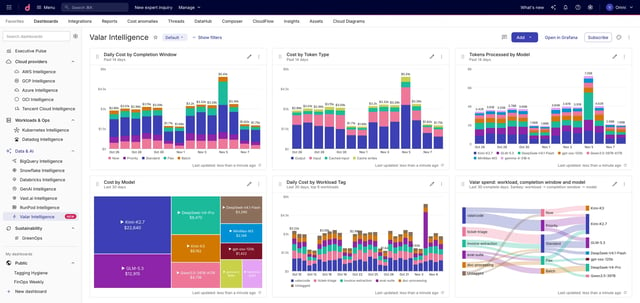
Spend by model and API key, per day. Each row carries the model that served the requests, the model's developer (DeepSeek, GLM, and so on), and the name of the API key that made them. Name your keys after teams or services and you get cost per team without any tagging work.
ValarCode reported under the model that actually ran. ValarCode routes requests, so the model that served a request can differ from the one the coding agent asked for. The cost is attributed to the model that did the work.
Token usage as metrics. Input, cached input, and output tokens are available alongside cost, which is enough to see how much of your input is being served from cache and what a million tokens costs you per model.
A place in your GenAI reporting. Valar costs appear in the AI Hub with your other AI providers, and in Cloud Analytics reports through the standard dimensions and labels.
Requests that use your own model-provider key through Valar are billed by that provider, not by Valar, so they show up when you connect that provider. Create a dedicated key with an expiry for this connection. Cloud Intelligence™ only reads usage with it.
Get started
- In the Valar dashboard, create an API key for this connection. Either key type works. See Create an API key.
- In Cloud Intelligence™, open Integrations, find Valar, and paste the key. Test the connection and save. See Connect your Valar organization.
- Cloud Intelligence™ pulls in up to 90 days of history, then refreshes every hour.
- Build a report grouped by Model or API key, or open the GenAI Intelligence dashboard. The available fields are listed under Reporting dimensions.
Related documentation
- help.doit.com/docs/dashboards/ai-hub
- help.doit.com/docs/cloud-analytics/reports/report-dimensions-groupings-and-filters
- help.doit.com/docs/connect-third-party/connect-valar#create-api-key
- help.doit.com/docs/connect-third-party/connect-valar#connect-your-valar-organization
- help.doit.com/docs/connect-third-party/connect-valar#reporting-dimensions