
Cloud Intelligence™
You Switched to Amazon Quick Enterprise — And Lost Everything. Here's the Fix.
This page is also available in Deutsch, Español, Français, Italiano, 日本語, and Português.
Co-authored with Brian Gao


About Dima Kramskoy
Senior Cloud Architect II
Solutions architect who takes ideas from zero to proven. With over 20 years of software engineering, I build PoCs and MVPs on AWS that prove the path before you commit — spanning GenAI, DevOps, and FinOps. Off the clock: live-fire cooking, fishing, the outdoors, and applying Extreme Ownership to everything.
My personal pageTL;DR: Upgrading from Amazon Quick Free/Plus to Enterprise creates a brand new local profile and doesn't migrate your old one. Your conversations, knowledge graph, agents, and learned preferences aren't deleted — they're just sitting in a different folder on disk. Close Amazon Quick, copy the old profile folder's contents into the new one, restart your machine, and sign back in. The knowledge graph and agent memory transfer cleanly. Connectors like Slack, Outlook, and Google need to be manually re-authorized afterward.
Ever upgraded from Amazon Quick Free/Plus to Enterprise and watched your entire history vanish? Your conversations, your knowledge graph, your agents, your learned preferences — all gone. Not deleted. Just... invisible.
Yeah, that happened to me. And if you scroll through the Quick community forums, you'll see I'm far from alone.
Here's the thing — it's not a bug. It's a profile boundary. And AWS doesn't give you a migration path. So my colleague Brian Gao and I figured one out.
What Actually Happens
Amazon Quick Desktop stores everything locally under ~/.quickwork/profiles/<profile-id>/. Each sign-in identity gets its own folder:
~/.quickwork/profiles/├── social-xxxxxxxxxxxx/ ← my old Builder ID profile│ ├── sessions/ ← all conversation history│ ├── skills/ ← custom skills│ ├── chat_agent_files/ ← agent configs + files│ └── workstreams/└── enterprise-xxxxxxxxxxxx/ ← my new Enterprise profile ├── sessions/ ← empty. brand new. └── ... ← everything else: also empty.When you sign in with Enterprise SSO, Quick creates a fresh profile. It doesn't look at your old one. It doesn't ask if you want to migrate. It just... starts over.
The community forums are full of panicked posts: "Lost everything after update", "All conversations gone", "How do I switch back?" — and the official answer is essentially: those are separate profiles with separate data.
Which is technically correct. And completely unhelpful when you've spent months building up context, agents, and workflows.
The Workaround
Brian and I dug into the profile folder structure and realized — everything is just files. So close Amazon Quick completely (this isn't optional — files are locked while the app runs) and then it's a straightforward copy.
Then it's just a full folder copy — grab everything from the old profile and drop it into the new one:
# 1. Find your profilesls -la ~/.quickwork/profiles/# The BIGGER folder is your old one with all the data
# 2. Copy EVERYTHING from old profile into the new onecp -r ~/.quickwork/profiles/social-*/* \      ~/.quickwork/profiles/enterprise-*/
Once the copy completes, quit Amazon Quick fully — don't just close the window, make sure the process is gone. We actually went a step further and restarted the Mac entirely before opening Quick again, just to make sure no stale caches or locked files interfered. I'd recommend the same — it takes two minutes and saves you from debugging weird state issues.
After the restart, open Quick, sign in with your Enterprise credentials, and... everything's back. Conversations, agents, skills, the whole thing.
Before we went ahead with this, Brian and I had a number of conversations with the AWS Quick team about the best approach. Their response? Our thinking was right — and AWS doesn't currently have a more official or documented migration path. So yeah, cp -r it is. At least we got the nod that we weren't about to break anything.
The Good News: Your Knowledge Graph Survives
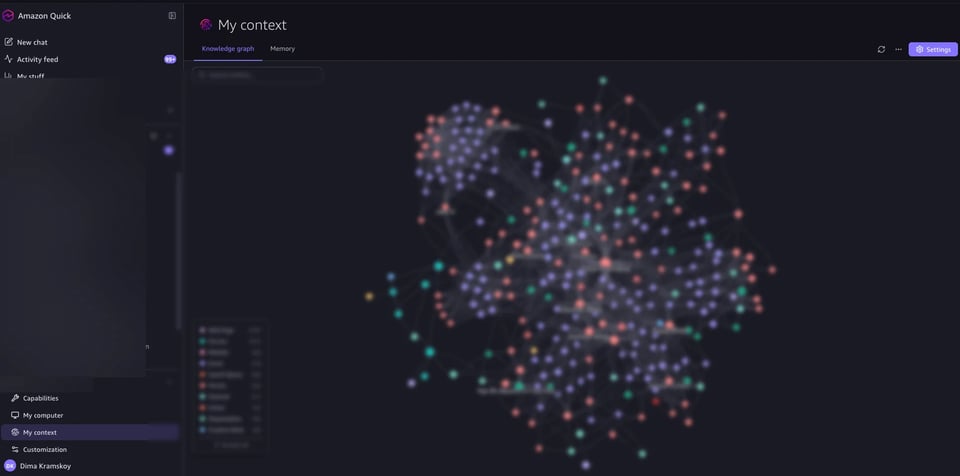
Here's the part that genuinely surprised me — your Knowledge Graph and learned memories carry over perfectly. The KG with all its entities, relationships, everything the app had learned from months of Slack messages, emails, calendar events — it's all there after the copy. Same with the agent's memory — preferences it picked up, procedures it learned, the whole context of how you work.
That's huge. Rebuilding a knowledge graph from scratch would take weeks of passive ingestion. The fact that it's just files on disk and transfers cleanly is the one thing this architecture gets absolutely right.
The Manual Part
- Connectors need to be set up manually. This is the one thing that doesn't carry over cleanly. Slack, Outlook, Google — the OAuth tokens are tied to your old identity. You'll need to go into Settings → Capabilities → Connections and re-authorize each one by hand. The data they previously indexed is preserved, but the live connections aren't — so plan a few minutes for this part.
- Knowledge graph comes with sessions. The KG lives in the sessions database, so copying
sessions/brings your entities and relationships along for the ride. - The bigger folder wins. If you're not sure which profile is which, check the folder sizes. The one with months of history will be significantly larger.
- Back up first. Seriously. Copy the entire
~/.quickwork/profiles/somewhere safe before you start moving things around. One wrongcpand you're in worse shape than when you started.
Cloud bill shouldn't be a mystery
One platform for AI and Cloud optimization.
Why This Matters
This isn't just about convenience. If you're a DoiT consultant — or anyone using Quick Desktop seriously — your profile IS your productivity. Months of learned context. Custom agents tuned to your workflow. A knowledge graph with thousands of entities built from your Slack, email, and calendar.
Losing that because you upgraded your subscription tier? That's not acceptable. And the fact that AWS doesn't provide a migration tool — or even document the folder structure clearly — means most users just accept the loss and start over.
Don't start over. Copy the folders.
The Ask
AWS, if you're reading this: build a profile migration tool. A simple CLI that merges profile data when a user switches identity providers. The data is all local, the schemas are the same — it's a solvable problem. The community is asking for it. Loudly.
Until then, cp -r is your friend.
Frequently Asked Questions
Why did I lose my data after upgrading to Amazon Quick Enterprise?
Amazon Quick Desktop stores each sign-in identity in its own local profile folder under ~/.quickwork/profiles/. When you sign in with Enterprise SSO, Quick creates a brand new profile instead of migrating your old one. Nothing is deleted — your old conversations, agents, and knowledge graph are still on disk, just in a folder the new profile doesn't reference.
Can you migrate an Amazon Quick profile manually?
Yes. Close Amazon Quick completely, then copy the entire contents of the old profile folder into the new Enterprise profile folder with cp -r. Restart the machine before reopening Quick to clear any stale caches or locked files, then sign in with Enterprise credentials.
Does the knowledge graph transfer during an Amazon Quick profile migration?
Yes, cleanly. The knowledge graph lives inside the sessions/ directory, so copying that folder brings all entities, relationships, and learned agent memory along with it. This is the one part of the migration that requires no extra manual work.
Do Slack, Outlook, and Google connectors carry over after migration?
No. Connector OAuth tokens are tied to the old profile's identity, so each connector needs to be manually re-authorized in Settings → Capabilities → Connections after the migration. Previously indexed data from those connectors is preserved even though the live connections aren't.
Where are Amazon Quick Desktop profiles stored?
Profiles are stored locally at ~/.quickwork/profiles//, with each sign-in identity getting its own subfolder containing sessions/, skills/, chat_agent_files/, and workstreams/. The folder with the larger size is typically the one holding your historical data.


