
Announcement
This page is also available in Deutsch, Español, Français, Italiano, 日本語, and Português.
See your Vast.ai GPU spend next to AWS, Google Cloud, and Azure
Rented GPUs and serverless inference now show up in your cost and usage reporting, broken down by workload, GPU model, and what you were actually charged for. Available now in Cloud Intelligence™.
Vast.ai rents GPUs from thousands of independent hosts, and it bills like a prepaid meter. Your credit balance falls, one total-spend figure moves with it, and neither one tells you which workload drained it or on which card. The rates make that expensive to guess at: an eight-way H200 node runs north of $45 an hour, so a node left up over a weekend is four figures before anyone opens the console.
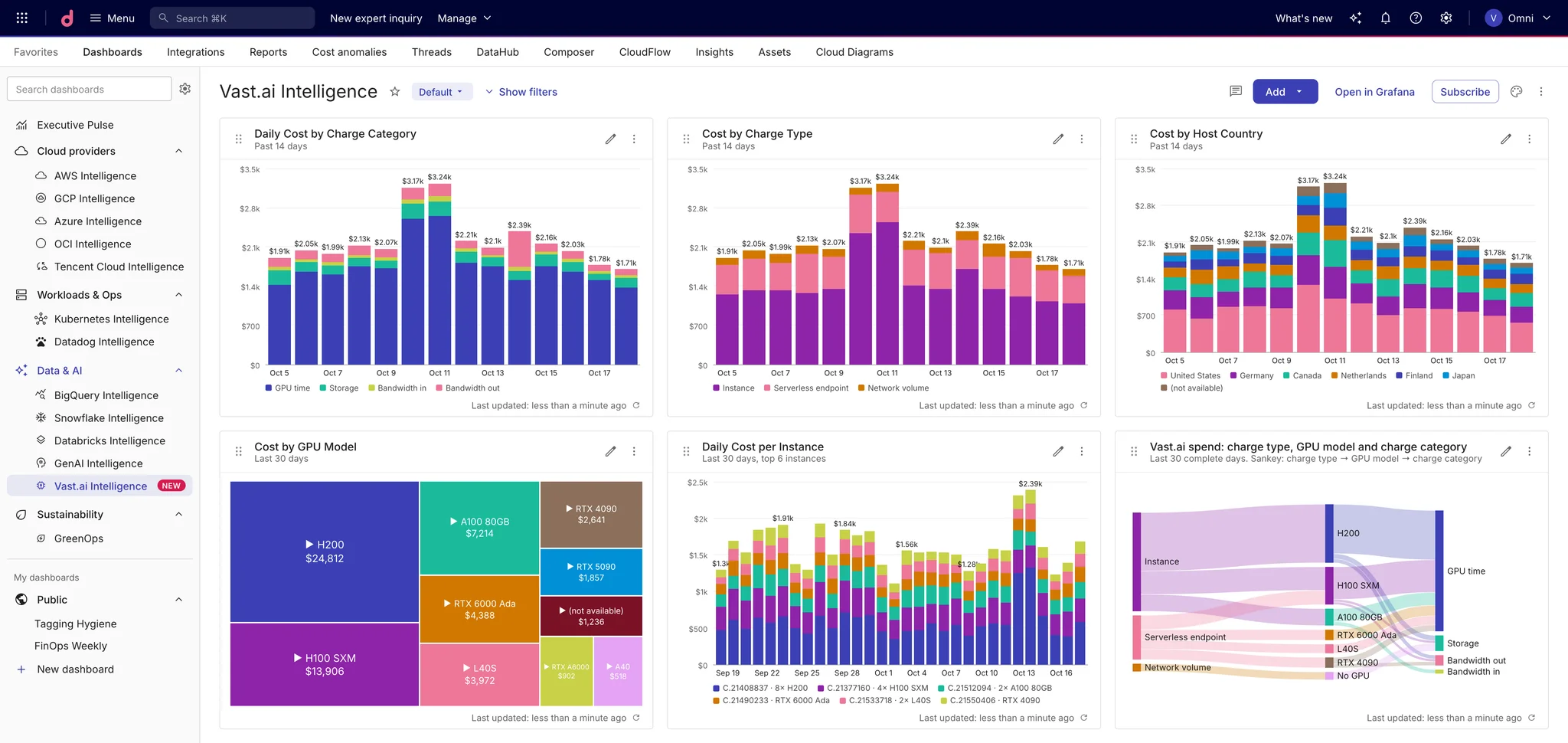
Cloud Intelligence™ now reports them per instance, per day, split into the four things Vast.ai actually charges for.
What you get
Daily cost per instance, split into GPU time, storage, bandwidth in, and bandwidth out. Each becomes its own line, so you can see when a job's real cost was data transfer rather than the card.
Workloads kept apart. Serverless endpoints, instances you rented directly, and network volumes each report as their own service. The Charge type label separates them in any report.
GPU model and host country on the rows where Vast.ai still knows them, so you can compare what an H200 hour cost you against an RTX 6000 hour, or against on-demand capacity from your other providers.
Spend that lands on your AI dashboards. Every Vast.ai row counts as AI spend, because the whole platform sells GPU capacity for AI work. If you rent GPUs there for rendering or batch jobs you would not call AI, that is worth knowing before you connect.
Credit top-ups stay out of your cost reports. Vast.ai credit is a prepaid balance, not consumption, so counting a top-up as cost would double what you actually spent.
Get started
- Create an API key in the Vast.ai console under Account, with read access to billing and instances. Nothing writes back to your account. See the Vast.ai connection guide.
- In Cloud Intelligence™, open Data ingestion and integrations and find Vast.ai. You will need the Billing Profiles Admin permission.
- Enter a name for the account and the key, then run Test connection and save. Connect each Vast.ai account separately.
- Build your first view in Reports, grouping by Charge type or GPU model to see where the hours went.
