
Announcement
This page is also available in Deutsch, Español, Français, Italiano, 日本語, and Português.
See what your RunPod GPUs actually cost, next to the rest of your AI spend
Daily RunPod spend for Pods, Serverless endpoints and network volumes now lands in Cloud Intelligence™, broken down by GPU type
RunPod bills against a prepaid balance, by the second. That is great for experimentation and awkward for reporting: the invoice shows credit top-ups, the balance shows what is left, and neither tells you which Pod, which Serverless endpoint or which GPU burned through last week's credits. Serverless makes it harder still, because workers land on whatever capacity is free, so the GPU you configured is not always the GPU you paid for.
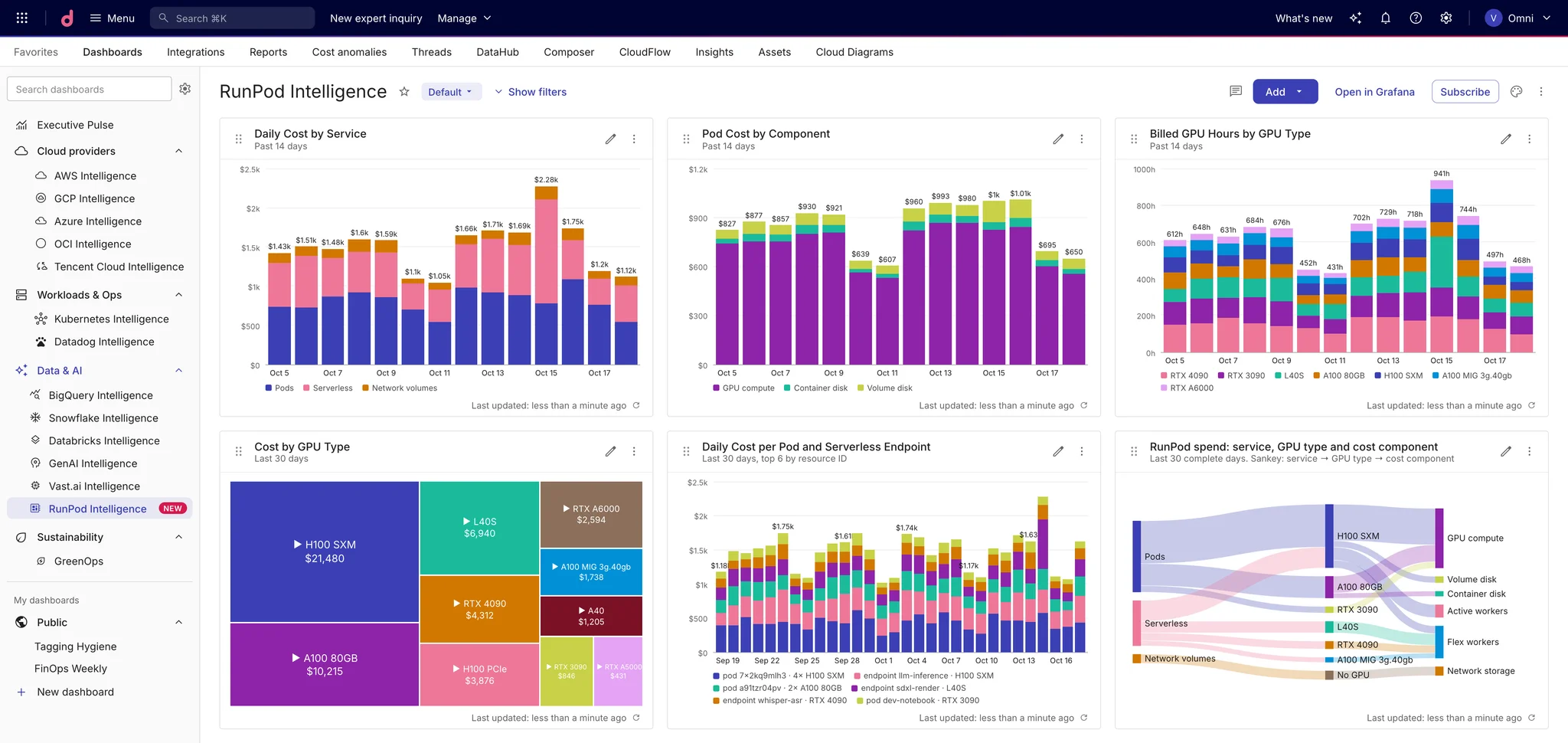
Cloud Intelligence™ now reads your RunPod billing directly and turns it into daily cost rows you can slice by service, Pod, Serverless endpoint and GPU type, right next to your AWS, Google Cloud, OpenAI and Anthropic spend.
What you get
Every RunPod product in one place. Pods (compute plus their container and volume disk), Serverless endpoints (flex and active workers) and network volumes, as three services in Cloud Analytics.
Spend by GPU type. Each Pod and Serverless row carries the GPU that actually ran it, from an RTX 3090 to an H100 or a MIG slice, so you can see where the money goes per class of hardware.
Attribution down to the resource. Pod and Serverless endpoint IDs are available as labels, so you can build allocations and reports per workload instead of per account.
AI spend in context. RunPod costs appear in the GenAI Intelligence dashboard alongside your other AI providers, and work in reports and allocations like any other cost.
Usage, not only dollars. Billed GPU hours for Pods and Serverless, GB-hours for network volumes.
Setup is deliberately boring: one read-only API key, no agents, nothing to deploy. Cloud Intelligence™ never starts, stops or changes anything in your RunPod account. Data refreshes every 6 hours, and each day is imported once it has closed in UTC, so the numbers you see match what RunPod charged.
Get started
- In the RunPod console, create an API key with Read Only permission, in the account or team you want to track (Create a read-only API key).
- In Cloud Intelligence™, open Integrations, find RunPod and select Connect (Connect your RunPod account).
- Up to 12 months of history is imported on the first sync. Once it lands, open a report filtered to the RunPod provider and group by SKU to see spend per GPU type (RunPod reporting dimensions).
Related documentation
