
Cloud Intelligence™
Don’t Lose Your GPUs During Maintenance on Google Cloud
Secure Capacity with GCP Reservations
This page is also available in Deutsch, Español, Français, Italiano, 日本語, and Português.
Follow-on to this article for AWS


About Joshua Fox
Senior Cloud Architect II
Joshua Fox has been a software architect in innovative technology companies for 20 years. Now, he advises tech startups and growth companies on architecture and cost optimization for Google Cloud Platform and Amazon Web Services; also publishing articles, and speaking to cloud engineers.
He has a PhD from Harvard University and a BA in math from Brandeis.
My personal pageThe global demand for GPUs is astronomical. Securing NVIDIA L4, A100, or H100 resources in Google Cloud Platform (GCP) often feels like a big win for your engineering team. Yet you can lose that capacity when maintenance of underlying hardware occurs, or when you manually stop your instance to perform routine tasks.
Stopping your VM releases your resources, whether it is a scheduled Google Cloud maintenance event or a user-initiated stop to patch a driver, rotate an image, or modify instance scopes. This throws your GPU back into the public pool, leaving your critical ML training runs or inference workloads stranded. Here is how to lock down your GPUs and ensure they survive infrastructure updates.
The Problem: GCP's Maintenance Model for GPUs
One of GCP’s best features is Live Migration, which seamlessly moves running VMs to healthy hosts during infrastructure maintenance with minimal disruption. However, Live Migration is not supported for VMs with attached GPUs.
Because the GPU is physically attached to the host via PCIe, GCP cannot migrate the state of the GPU memory over the network. As a result, Compute Engine uses the TERMINATE host-maintenance policy (onHostMaintenance) for VMs with attached GPUs.
When Google needs to patch or replace the physical hardware hosting your instance:
- Compute Engine provides advance notice of scheduled host events—typically one hour (emergency maintenance can give less warning).
- The VM receives an ACPI shutdown signal and is forcefully stopped.
- If your VM is configured with
automaticRestart: true(the default), GCP automatically attempts to spin the VM back up on a different, healthy host.
Storage Warning: Data on Local SSD disks is ephemeral and may be lost during termination, manual stops, or unsuccessful recovery after a host event. Store durable state on Persistent Disk, Hyperdisk, or Cloud Storage, and use Local SSD only for caches and temporary data.
User-Initiated Maintenance Risks
Beyond scheduled host events, many routine administrative tasks require a full VM stop/start rather than a simple reboot. Examples include:
- Updating NVIDIA drivers or CUDA toolkits that require an offline state.
- Modifying core instance attributes (such as changing service accounts or access scopes).
- Moving to a new machine image or performing rolling OS patch management across a cluster.
Executing a standard gcloud compute instances stop immediately surrenders your hardware back to the shared capacity pool.
The Risk: The Capacity Lottery
When GCP attempts to restart your stopped VM (or when you manually initiate a start), it goes back to the zone's resource pool and asks for a new GPU.
Because GPUs are in a state of near-permanent scarcity, a later start may fail if capacity is unavailable. Instead of restarting, your VM will throw a ZONE_RESOURCE_POOL_EXHAUSTED or ZONE_RESOURCE_POOL_EXHAUSTED_WITH_DETAILS error.
Your VM will remain in a TERMINATED state. You have officially lost your GPU, and you will have to wait in line with everyone else—repeatedly trying to start the instance until capacity frees up. Having sufficient project quota won’t do it for you: It is not the same as physical capacity being available in a specific zone. Quota is a maximum limit imposed by Google, while capacity depends on whether other users are now holding the existing resources.
The Solution: Zonal reservations with exact hardware matching
The solution that prevents your GPU from being surrendered back to the public pool during a restart is Compute Engine Reservations.
A reservation in GCP provides a level of assurance of capacity. When your VM is stopped for maintenance, it drops its claim on the physical hardware, but your capacity reservation immediately catches the "empty space," keeping the allocation reserved for your project. When Compute Engine automatically restarts the VM or you manually start it again, your VM simply consumes your dedicated reservation.
GCP reservations are highly specific:
- Zonal Restriction: Reservations are bound to a specific zone (e.g., us-central1-c), not a broader region.
- Exact-Match Requirement: Your VM must perfectly match the reservation parameters to consume it. The machine type, GPU type and count, and Local SSD, and other properties must be identical.
- No OS Requirement: Unlike AWS capacity reservations which mandate an Operating System (Platform) match, GCP does not require you to match the operating system or boot image, giving you the flexibility to rotate images without breaking the reservation lock.
In this scenario, the reservation works to retain your existing resources. If you are not yet running the GPU, the reservation-creation might fail; only once the resource is available will the reservation be successfully created.
Cloud bill shouldn't be a mystery
One platform for AI and Cloud optimization.
Important Restrictions and Edge Cases
While reservations are the standard defense against capacity loss, you must account for specific GCP architectural rules:
- Restricted GPU Shapes: Due to extreme supply constraints, some newer or highly sought-after GPU shapes cannot be reserved using standard on-demand capacity reservations. For example, A4X Max, A3 Ultra, and A3 High configurations with fewer than eight GPUs currently have restrictions. Always verify reservation eligibility in the GCP documentation.
- Spot VMs vs. CUDs: Reservations protect standard VM workloads. They do not protect Spot VMs, which cannot consume reservations and are preemptible by design.
- CUDs: Committed Use Discounts affect pricing; they do not themselves reserve capacity. Note that CUDs are charged for VMs but also for inactive reservations.
- GKE Integration: Compute Engine reservations can protect GPU capacity used by Google Kubernetes Engine (GKE). In GKE Standard, configure the node pool with reservation affinity. In GKE Autopilot, you must explicitly select a reservation or configure a supported custom ComputeClass.
How to Implement GPU Reservations for User Maintenance
The safest approach to prevent configuration drift is to define the VM once in an instance template and create the reservation from that template. By default, reservations are set to "Consume automatically". Any VM created in your project that exactly matches the reservation's specifications will automatically claim it.
1. Create the Reservation
If you are performing rolling maintenance across a cluster (such as node-by-node OS patching), you do not need to reserve capacity for the entire fleet. Size your reservation to match the exact number of instances you plan to bring down simultaneously. For example, if you drain and update two nodes at a time, set your --vm-count to 2 to catch those specific instances as they bounce.
You can provision the reservation using an instance template to ensure exact matching using the command line:
gcloud compute reservations create gpu-maintenance-reservation \ --project=my-project-id \ --source-instance-template=projects/my-project-id/global/instanceTemplates/my-gpu-template \ --vm-count=1 \ --zone=us-central1-cAlternatively, you can define the reservation directly:
gcloud compute reservations create reservation-v100 \ --project=joshua-playground \ --zone=us-east1-c \ --machine-type=n1-standard-1 \ --accelerator=count=1,type=nvidia-tesla-v100 \ --vm-count=1 \ --require-specific-reservation=falseAnd of course this can be done in the Google Cloud Console.
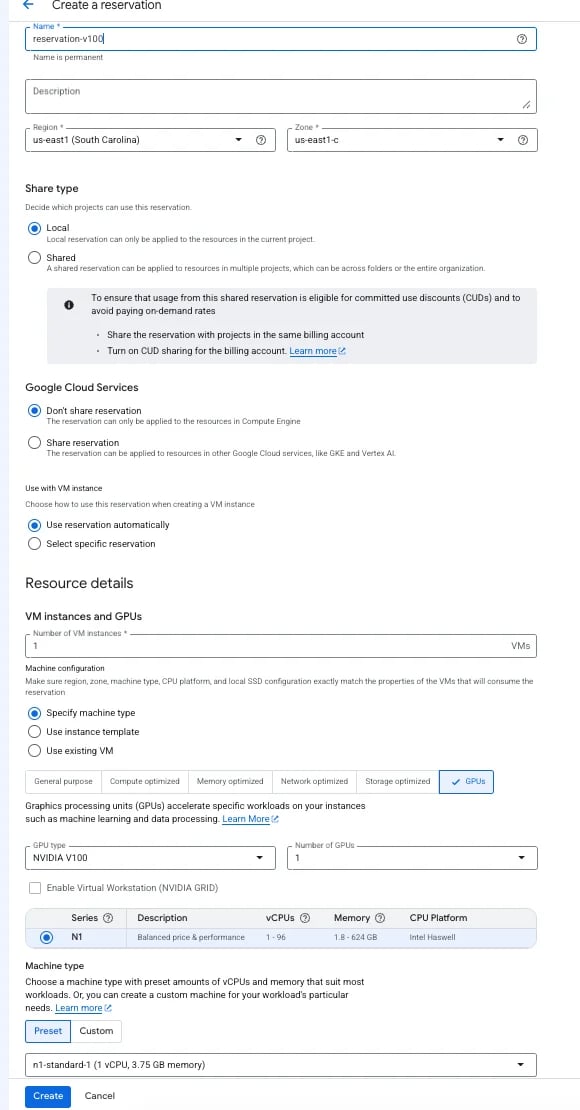
2. Deploy Your VM and Verify Consumption
Because --require-specific-reservation is set to false, you don't need to change your VM deployment scripts. As long as you launch an exact match in the same zone, GCP will automatically slot the VM into your reserved capacity.
To confirm that the expected number of instances are consuming the reserved slots, check the reservation metrics in the Google Cloud Console. You can view the current reservations in Compute Engine > Reservations, or see historical use in Google Cloud Monitoring, using metrics compute.googleapis.com/reservation/used and compute.googleapis.com/reservation/reserved.
3. Clean Up Your Reservation
Unlike standard VMs, capacity reservations must be explicitly deleted when you no longer need them. If you permanently retire your workload and delete the VM, but forget to delete the reservation, you will continue paying for the empty GPU capacity at the full on-demand rate; and CUD's will be billed.
When you are done with the reservation, remove it using the command line:
gcloud compute reservations delete gpu-maintenance-reservation \ --project=my-project-id \ --zone=us-central1-c \ --quietThe Financials
Reservations in GCP do not cost extra, though you pay for the reserved resources whether they are actively attached to a running VM or sitting idle. Because you are already paying for the active GPU VM, wrapping it in a reservation is cost-neutral. You only incur idle costs during the brief minutes the VM is rebooting during maintenance, making this a cheap insurance policy against losing your hardware.
To verify exactly how much you paid for the reserved capacity while your instances were stopped, you can use DoiT Cloud Analytics. Filter your reports by the compute.googleapis.com/reservation SKU to audit the exact cost of the guaranteed capacity during your downtime.
By utilizing GCP reservations, you transform hardware availability from a game of chance into a predictable guarantee. Because reservations cost nothing extra on top of your underlying compute, failing to wrap your critical GPU instances in a reservation is an unnecessary risk. Provision the exact capacity you need in your target zone, deploy from a matched instance template, and ensure that routine restarts or unavoidable Google maintenance events never leave your workloads stranded.


