
The problem
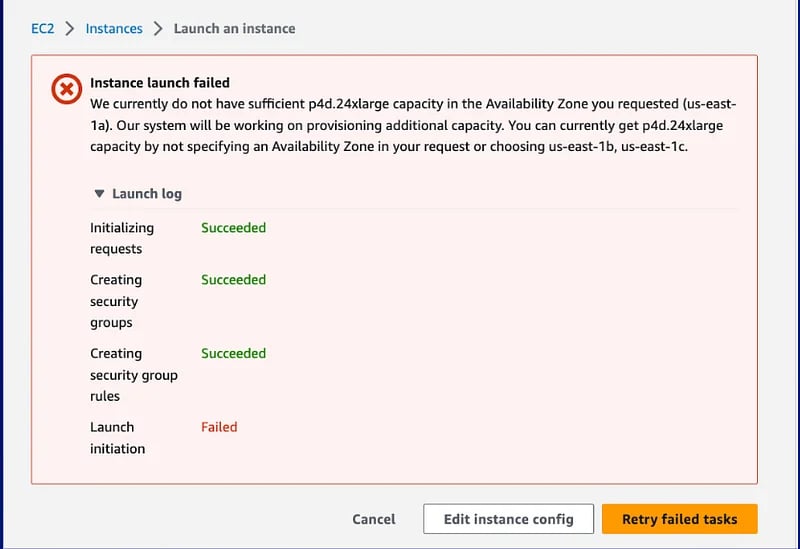
Capacity for EC2 GPU instance families such as P5, P4d, G7, G6, and G5 can be scarce, especially during periods of high demand. When you stop an instance, it's returned to the shared pool, and there is no guarantee it will be available when you want to start it again.
This turns routine maintenance into a gamble. The moment you stop a GPU instance to patch a driver, rotate an AMI, resize the root volume, or apply an OS update, that capacity becomes fair game for every other AWS customer.
If demand is high, you can hit an InsufficientInstanceCapacity error when you try to start back up, and your "10-minute maintenance window" becomes hours of retry loops, or worse, an outage while you wait for capacity to free up.
What an On-Demand Capacity Reservation actually does
An EC2 On-Demand Capacity Reservation (ODCR) reserves compute capacity for a specific instance type, in a specific Availability Zone, for as long as you keep the reservation active. The key property is that the capacity is held for you, whether or not an instance is currently running.
That last point is what makes ODCRs the right tool for maintenance. When you stop an instance that's utilizing a reservation, the reserved compute remains available for you. AWS keeps that capacity allocated exclusively to your account. When you start the instance again, AWS guarantees that the reserved capacity is available.
A few important characteristics
Unlike what the name might suggest, an immediate Capacity Reservation isn't a long-term commitment. It simply guarantees that the EC2 capacity you need is available when you need it. If your plans change or you no longer need that reserved capacity, you can cancel the reservation at any time. There are no cancellation fees or minimum commitment periods.
The cost of a Capacity Reservation is the same as running an On-Demand EC2 instance. If you have an applicable Savings Plan or Reserved Instances, the discounted rate still applies to the Capacity Reservation. The only difference is that you continue paying for the reserved capacity even while the instance is stopped, until you cancel the Capacity Reservation or start the instance.
Why this matters specifically for maintenance work
Ironically, maintenance is often when you're most exposed. Once you stop your instance, its capacity is returned to AWS's shared pool. If another AWS customer launches a matching instance in the same Availability Zone before you start yours again, they may consume the capacity that was previously backing your instance, potentially turning a planned maintenance window into an unexpected outage.
Stop/start operations
Many maintenance tasks require a full stop/start rather than a reboot:
- Moving to a new AMI
- Modifying certain instance attributes
Each of these returns the instance to the shared capacity pool.
Rolling maintenance across a fleet
If you're patching a fleet node by node, you typically drain and stop one instance at a time. Without reserved capacity, each node you bring down might not come back, and you can end up with a fleet that's permanently smaller than you started.
Planned hardware events
AWS occasionally schedules maintenance on the underlying host (for example, degraded hardware or host retirement). Having a Capacity Reservation guarantees compute when you stop and start the instance to migrate off the affected host.
Cloud bill shouldn't be a mystery
One platform for AI and Cloud optimization.
How to use it in practice
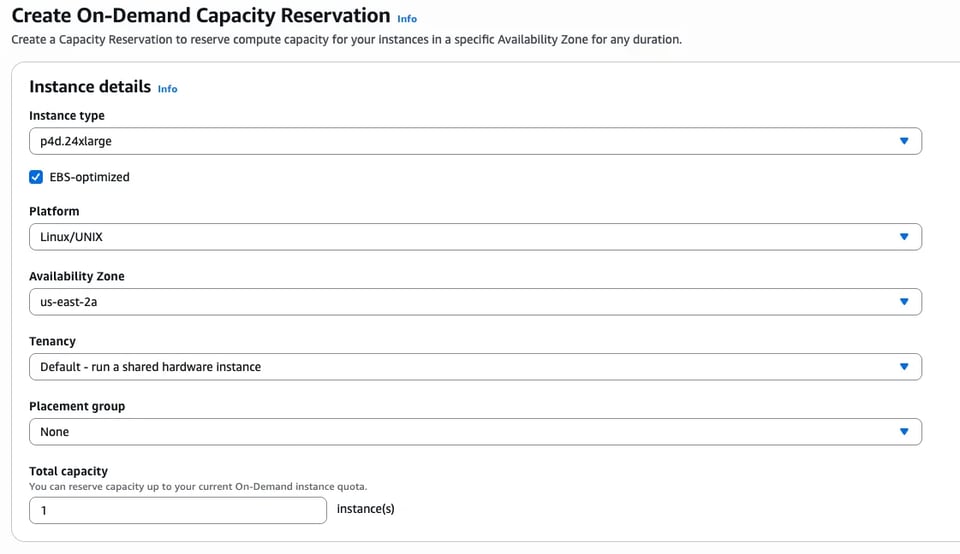
In the EC2 Console, create an open On-Demand Capacity Reservation matching the:
- Instance type
- Availability Zone
- Operating system (Platform)
Size the Capacity Reservation to match the total number of instances of the same type (for example, g7.xlarge) that you have in that Availability Zone during the rolling maintenance operation.
Confirm that your instances consume the reservation. By default, EC2 instances automatically use an open Capacity Reservation whenever a matching reservation is available. Make sure the Capacity Reservations you've created are actually being utilized by your instances.
Capacity Reservations also support more advanced use cases, such as targeted Capacity Reservations for specific workloads. Those scenarios are outside the scope of this article.
Perform your maintenance as usual:
- Stop the instance.
- Apply the required changes.
- Start the instance again.
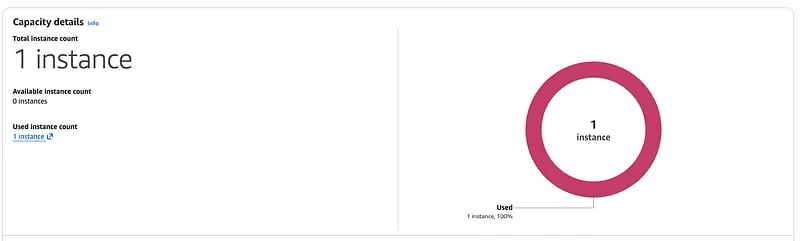
Because the capacity remains reserved, the instance starts without competing for available GPU capacity.
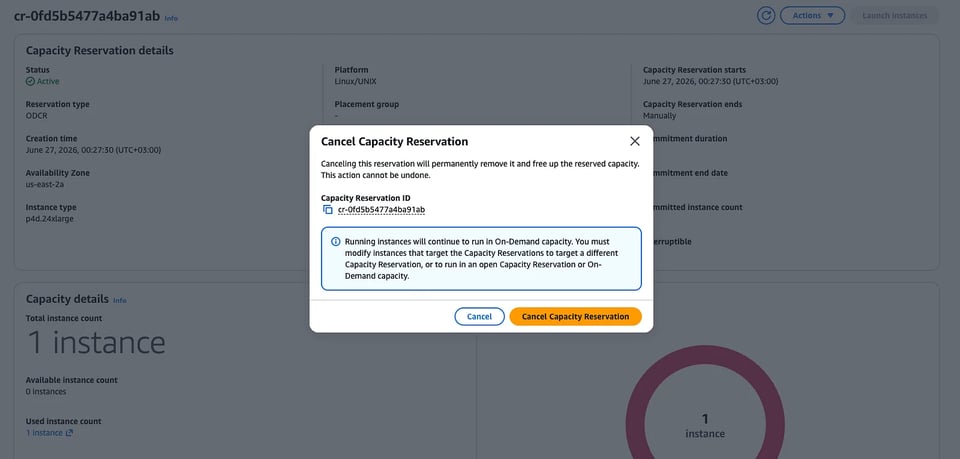
Once maintenance is complete, cancel the Capacity Reservation if you no longer need it. Your instances will continue running normally.
How much did it cost?
To see exactly how much you paid for the reserved capacity while your instances were stopped, wait about 48 hours after maintenance completes. AWS Billing data isn't real-time, and it can take up to two days for these charges to appear.
Once the billing data has been updated:
- Open AWS Billing → Bills.
- Search for "Unused Reservation".
You'll see a line item showing:
- The instance type
- The amount you were charged for the Capacity Reservation while it wasn't being used by a running instance

This provides a simple way to measure the cost of guaranteeing capacity during your maintenance window.
In my case, the maintenance took less than 30 minutes. Without a Capacity Reservation, I could have been waiting hours for GPU capacity to become available again.
Bottom line
Capacity shortages are an unavoidable part of running workloads in a shared cloud environment. Fortunately, AWS provides a simple way to eliminate that uncertainty when it matters most.
If you're planning maintenance on GPU instances, or any EC2 instance type with scarce capacity, a temporary Capacity Reservation can be the difference between a routine maintenance window and hours of unexpected downtime.


