
Cloud Intelligence™
GCP Compute Advisor: Design Your Compute Infrastructure Before You Deploy It
GCP Compute Advisor is a new Gemini-powered tool that recommends machine types, costs, and configs for Compute Engine and GKE before you deploy.
This page is also available in Deutsch, Español, Français, Italiano, 日本語, and Português.


About Chimbu Chinnadurai
Senior Cloud Architect II
I've probably debugged a Kubernetes issue in more time zones than I care to count. Based in London, I help engineering teams across EMEA get their clusters to behave — and actually understand why they misbehaved in the first place.
I write, speak, and guest on podcasts about all things cloud-native. Away from the terminal: I enjoy cooking almost as much as simplifying overly complex systems.
My personal pageTL;DR: GCP Compute Advisor is a new Gemini-powered preview feature in Google Cloud that recommends machine types, cost estimates, and deployment configurations for Compute Engine and GKE before you provision anything. It grounds every answer in your actual project state — quotas, reservations, committed use discounts, and org policies — and returns ready-to-run gcloud, Terraform, or YAML output. It's built for Day-0 design decisions, not live troubleshooting; ongoing post-deployment optimization is handled by tools like PerfectScale.
If you've ever stared at the Compute Engine machine type list trying to figure out whether you need an N4 or a C4, or spent an afternoon comparing regional vs zonal MIGs for a new workload, Google Cloud just rolled out something worth your attention. Compute Advisor is a new preview feature, powered by Google Cloud's Gemini, that helps you evaluate hardware options, estimate deployment costs, and get recommended configurations before you ever spin up a resource.
It's available today in preview for both Compute Engine instances and GKE clusters, and it works the same way in both places: you describe your workload in plain language, and it hands back a grounded, project-aware recommendation instead of a generic best practice.
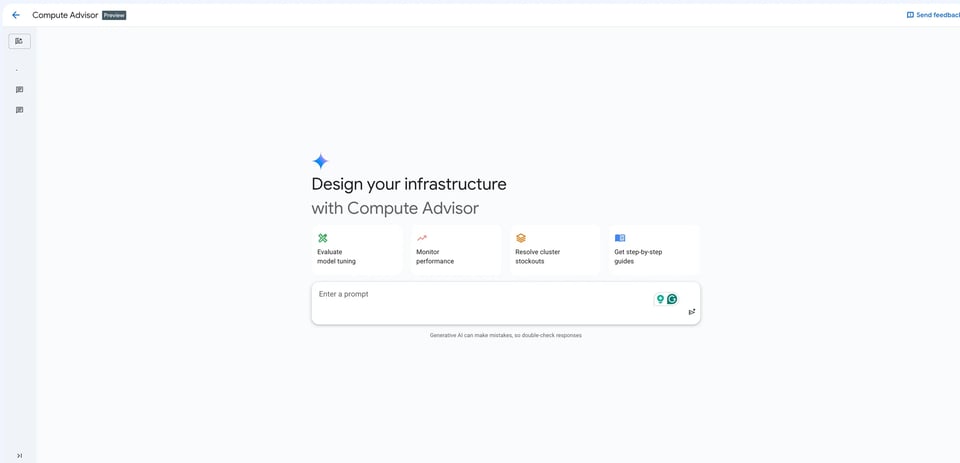
What Makes GCP Compute Advisor Different From a Generic AI Chatbot
Plenty of generic AI tools will happily generate a plausible-sounding VM spec. What makes Compute Advisor useful for actual planning work is contextual grounding: before it answers, it checks your real project state. That includes your quota limits, existing reservations, committed use discounts (CUDs), your default region and zone, and any resource location constraints your org has set through org policy.
Practically, that means when it recommends a C4D machine type with a specific vCPU count, it already knows whether you have quota for it in your default region, whether you're sitting on unused CUDs that make one family cheaper than another, and whether a location constraint rules out a zone before it's even suggested. You're not getting a recommendation you then have to go validate against your own account limits. It's already been checked against them.
Once you submit a prompt, three things show up in the response pane:
- Contextual Grounding: The recommendation reflects your actual project state, not a generic answer.
- Interactive Code Snippets: Ready-to-use gcloud commands, REST calls, or Terraform resources you can copy or execute directly in Cloud Shell.
- Visual Canvas: Comparison tables, side-by-side breakdowns, and structured implementation plans.
Compute Advisor can't create, modify, or delete resources on its own when used through the console. It's a design and planning surface, not an automation layer. You still review and run the commands yourself, which is standard practice for anything touching production capacity.
How to Prompt GCP Compute Advisor for Better Results
The quality of the output depends a lot on how you frame the request.
- Assign a Specific Role: Prompting it to act as a platform engineer or cloud architect changes the depth, trade-off analysis, and technical rigor of the response.
- Break Up Your Requests: Divide your prompt into numbered steps instead of asking broad questions like "help me pick a machine type." Asking for a comparison table, an architectural trade-off breakdown, and a deployment script as distinct items yields structured design documentation rather than a generic chat reply.
- Specify Output Formats Explicitly: State clearly if you need a Markdown table, a Terraform block, or a gcloud snippet.
- Skip Repetitive Context: You don't need to manually state your active region, quotas, or CUD status. The tool reads your project context automatically.
- Iterate in the Same Thread: If the initial response focuses on compute but misses networking or storage, ask a follow-up prompt. It builds on established context rather than resetting.
Compute Advisor is not built for troubleshooting live issues. If something breaks on an active instance or cluster, standard Cloud Logging and diagnostic tools remain the right path. Compute Advisor is built for Day-0 design, not Day-2 triage.
Sample Compute Advisor Prompts for Compute Engine and GKE
Here are practical prompts structured to get optimal outputs:
Choosing Between L4 and A100 GPUs for GKE Model Fine-Tuning
Act as an ML platform engineer. I'm fine-tuning a mid-size open model and need todecide between GKE node pools with L4 GPUs versus A100 GPUs for the training job.
Please provide the following:1. A cost and throughput comparison between L4 and A100 node pools for this workload.2. Recommended machine types and accelerator counts for a training job of this size.3. An estimate of relative training cost per epoch for each option.
Format the comparison as a Markdown table, and provide the node pool creationcommand as a ready-to-use gcloud snippet.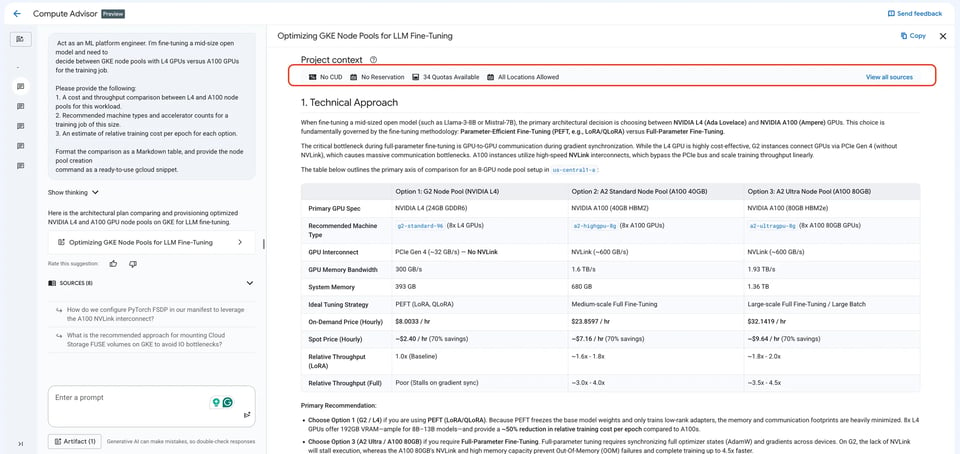
Right-Sizing GKE Node Pools Before a Peak Traffic Event
Act as a site reliability engineer. I want to understand whether our GKE nodepools are right-sized for current traffic before our next peak event.
Please provide the following:1. An assessment of whether current machine types are under or over-provisioned   based on recent utilization patterns.2. Recommended adjustments to node pool machine types or autoscaling thresholds.3. The Cloud Monitoring metrics I should track going forward to catch drift early.
Format the recommendations as a short walkthrough, followed by a Markdown tablesummarizing the suggested changes.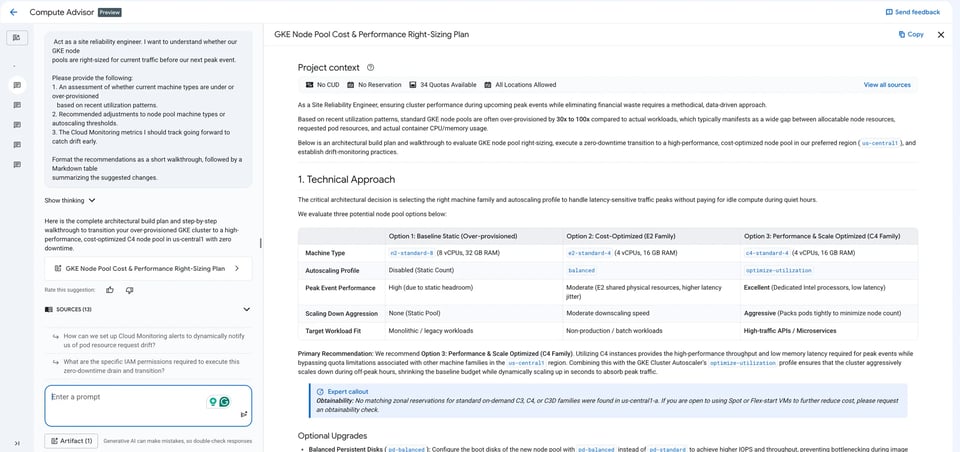
Multi-Zone Fallback and Instance Flexibility for GKE Stockouts
Act as a capacity planning engineer. Draft the recommended configuration formachine flexibility and multi-zone fallbacks for a GKE cluster to ensuresystem workloads remain resilient during peak traffic without manualintervention.
Please provide the following:1. A recommended instance flexibility configuration covering fallback machine types.2. A multi-zone fallback strategy that avoids manual rebalancing during a stockout.3. The autoscaling settings needed so this fallback triggers automatically.
Format the response as a Markdown table for the fallback options, and providethe ComputeClass or node pool configuration as a ready-to-use YAML manifest.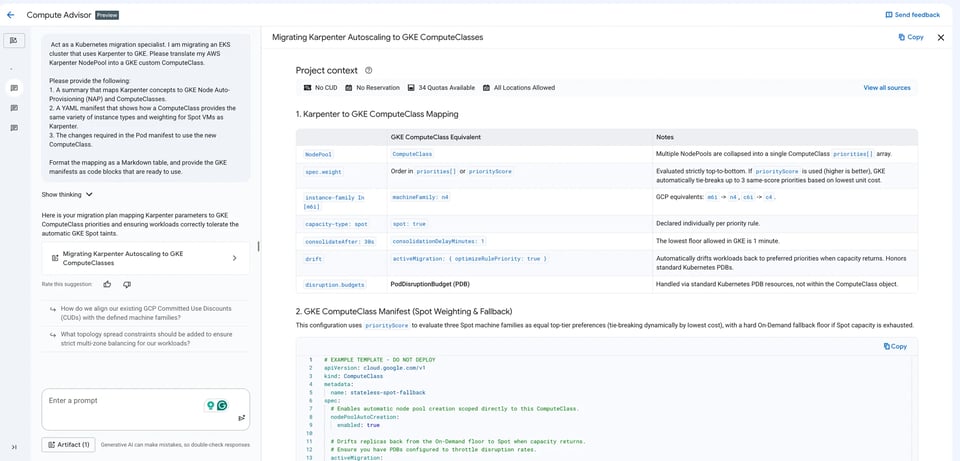
Migrating From AWS Karpenter to GKE Node Auto-Provisioning (NAP)
Act as a Kubernetes migration specialist. I am migrating an EKS clusterthat uses Karpenter to GKE. Please translate my AWS KarpenterNodePool into a GKE custom ComputeClass.
Please provide the following:1. A summary that maps Karpenter concepts to GKE Node Auto-Provisioning (NAP) and ComputeClasses.2. A YAML manifest that shows how a ComputeClass provides the same variety of instance types and weighting for Spot VMs as Karpenter.3. The changes required in the Pod manifest to use the new ComputeClass.
Format the mapping as a Markdown table, and provide the GKEmanifests as code blocks that are ready to use.
Cloud bill shouldn't be a mystery
One platform for AI and Cloud optimization.
Day 0 vs. Day 2: Why Compute Advisor Complements Google's Existing Recommenders
Most of Google's existing recommenders, the idle VM, machine type and the reservation recommendations, are reactive by design. They look at a resource that already exists and tell you it's been oversized or underused for the past however many days. That's useful, but it's after the fact.
Compute Advisor sits earlier in the process. It targets the architectural decisions made before resources exist: choosing provisioning models, comparing machine families, or evaluating GKE Autopilot vs Standard. Getting sizing and commitment strategies right on Day 0 reduces the volume of post-deployment flags down the line.
If you're regularly sizing new workloads, comparing provisioning models, Compute Advisor is worth folding into your planning workflow now while it's still evolving.
Continuous Optimization Beyond Day 0: PerfectScale for GKE and Commitments
Compute Advisor is built for point-in-time, prompt-based infrastructure design. It doesn't continuously monitor your environment, detect runtime drift on its own, or manage commitment purchasing over time. This Day-0 vs. Day-2 split is where two DoiT products pick up.
- PerfectScale™ for Kubernetes handles ongoing post-deployment optimization for GKE workloads. It continuously analyzes active usage to right-size CPU and memory requests and limits as application demands fluctuate.
- PerfectScale™ for Commitments manages long-term discount coverage. While Compute Advisor checks existing CUDs during design, PerfectScale tracks usage across your billing account, and for uncovered usage it can recommend, and optionally auto-purchase, Compute flexible CUDs so the numbers Compute Advisor grounds its recommendations against stay accurate over time.
FAQ
What is GCP Compute Advisor? Compute Advisor is a Gemini-powered preview feature in Google Cloud that helps you evaluate hardware options, estimate deployment costs, and get recommended configurations before provisioning any resource.
Is Compute Advisor available for both Compute Engine and GKE? Yes. It's available today in preview for Compute Engine instances and GKE clusters, and it works the same way in both: you describe your workload in plain language and get a grounded, project-aware recommendation.
How is Compute Advisor different from Google's existing recommenders? Google's idle VM, machine type, and reservation recommenders are reactive — they flag a resource that already exists and has been over- or under-used. Compute Advisor sits earlier in the process, targeting architectural decisions (provisioning model, machine family, Autopilot vs. Standard) before a resource ever exists.
Can Compute Advisor create, modify, or delete cloud resources on its own? No. Through the console, it's a design and planning surface, not an automation layer. You still review and run any generated gcloud, REST, or Terraform commands yourself.
What does a Compute Advisor response actually contain? Three things: contextual grounding (a recommendation checked against your real quotas, reservations, CUDs, and org policies), interactive code snippets (ready-to-use gcloud, REST, or Terraform), and a visual canvas (comparison tables and structured implementation plans).
Can Compute Advisor troubleshoot a live production issue? No. It's built for Day-0 design, not Day-2 triage — for active incidents, standard Cloud Logging and diagnostic tools are still the right path.
How does Compute Advisor relate to PerfectScale? Compute Advisor handles point-in-time, prompt-based design decisions. PerfectScale for Kubernetes and PerfectScale for Commitments pick up afterward, continuously right-sizing GKE workloads and managing CUD coverage over time.
Book a demo to learn more about DoiT Cloud Intelligence™.


