
Cloud Intelligence™
Breaking down Google Cloud costs by location
This page is also available in Deutsch, Español, Français, Italiano, 日本語, and Português.


About Vadim Solovey
Founded DoiT in 2011 and have been here ever since — in every flavor of CTO, co-CEO, and now CEO. I started my career in 1999 building data centers before anyone called it "the cloud," and I've spent the two decades since trying to deliver on what the cloud was actually supposed to be. I still write code most weeks.
My personal page
One of the popular question I am getting often is “how do I break down my Google Cloud costs by location?”. Today, I am going to show how to make Iris and Cloud Intelligence™ work together to collect and visualize this information for you.
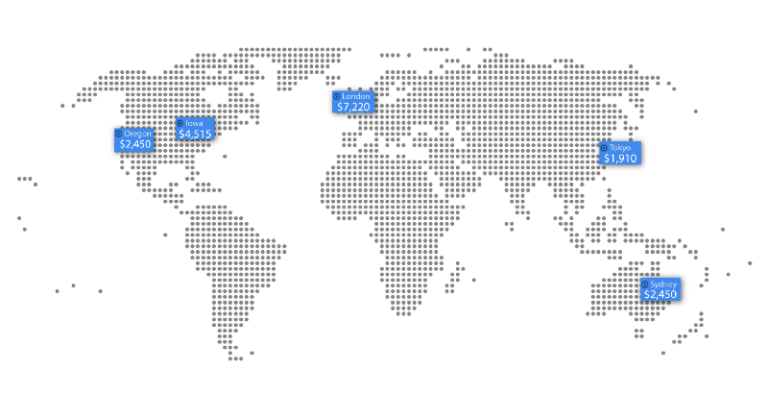 Mapping Google Cloud Costs by Regions, Zones and Locations
Before we can actually get to specifics, let’s do a quick recap on Iris and Cloud Intelligence™ so people not familiar with these tools can be better equipped for the rest of the article.
Iris is an open source software which automatically assigns labels to Google Cloud resources, usually for better discoverability and observability. With Iris, each resource in Google Cloud gets an automatically generated labels, usually in a form of [iris_name], [iris_region] and [iris_zone]. For example, if you have a Google Compute Engine instance named `nginx`, Iris will automatically attach the following labels this instance [iris_name:nginx], [iris_region:us-central1] and [iris_zone:us-central1-f]. You can read more about how Iris works in one of our recent blog post.
Since Iris is open source and it is extensible using plugins, you can basically collect any information you’d like from Google Cloud and add it as labels to your resources. Few popular examples can be iris_instance-cores, iris_instance-memory and finally iris_ip.
Cloud Intelligence™™ is a cloud cost discovery and optimization platform. With Cloud Intelligence™ it’s easy to answer questions such as:
- What Google Cloud services I am paying for?
- How much I am going to spend on Google Cloud this month?
- How I can optimize my spend with Google Cloud?
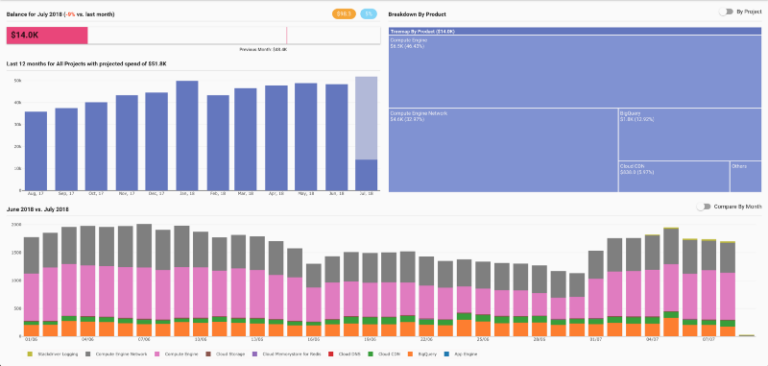
One of DCI’s most popular features is the ability to produce custom reports. Reports are very similar to pivot tables which you are probably familiar with from working with spreadsheets such as Google Spreadsheets or Microsoft Excel.
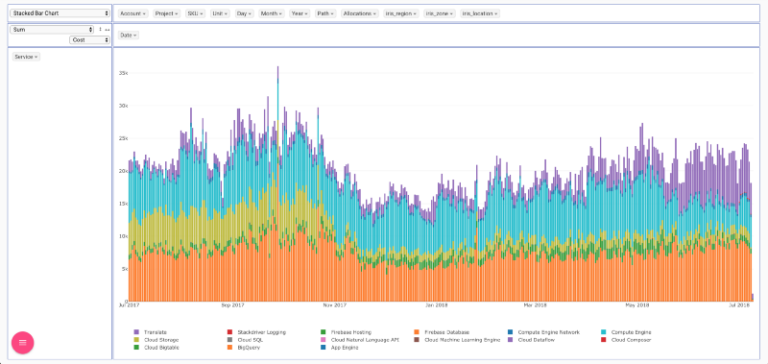 Cloud Intelligence™ Reports
Cloud Intelligence™ includes “Cost Labels”, a convenient way to enrich reports with label information. If you label your resources with something like “env:production” or “app:backend”, you can filter or group your billing reports using these labels.
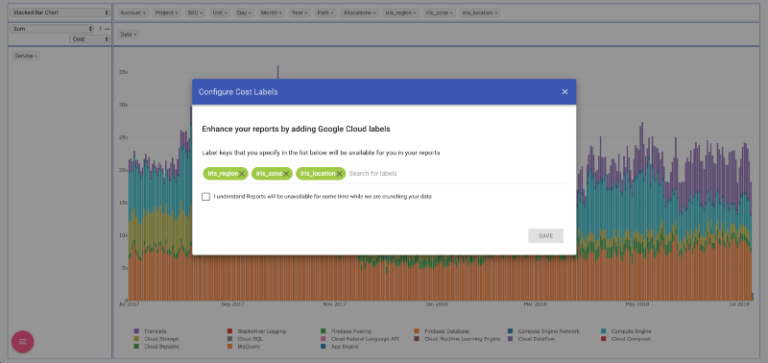 Configuring Cost Labels in Cloud Intelligence™ is easy!
Cloud bill shouldn't be a mystery
One platform for AI and Cloud optimization.
As you remember, Iris automatically adds to each resource the `iris_name`, `iris_region` and `iris_zone` labels. Once these labels are populated and propagated to Google’s billing data, you can configure these labels as “Cost Labels” and produce location aware reports:
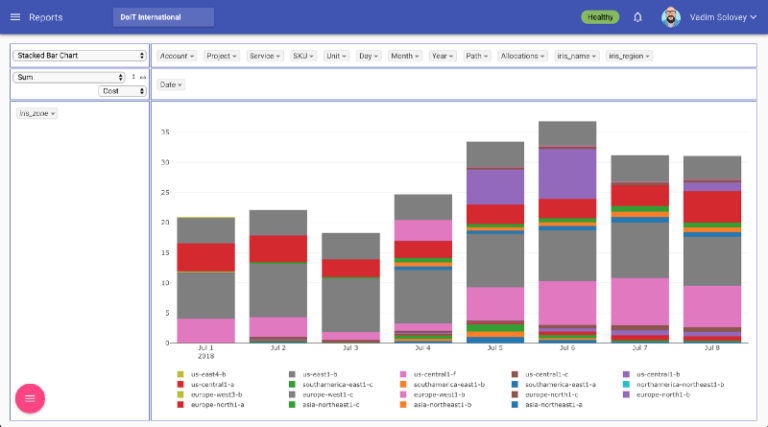 Cost Break Down per Google Cloud Zone
You can even track cost of individual instances, buckets or BigQuery datasets/tables using the iris_name label:
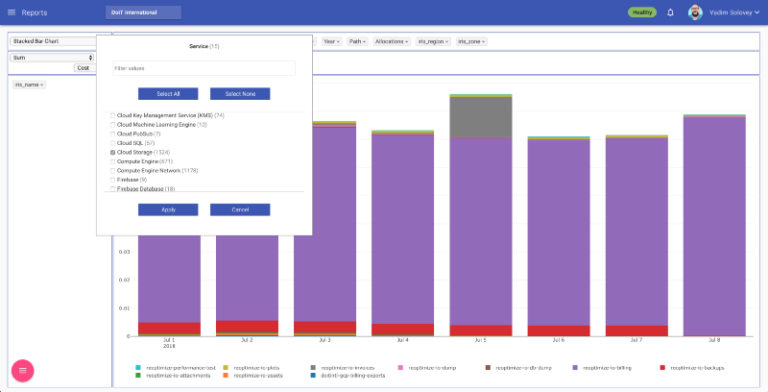 Cost of Google Cloud Storage buckets by name
There is basically no limit in how you can analyze your Google Cloud costs. Another example can be break-down by zone and instance type over time:
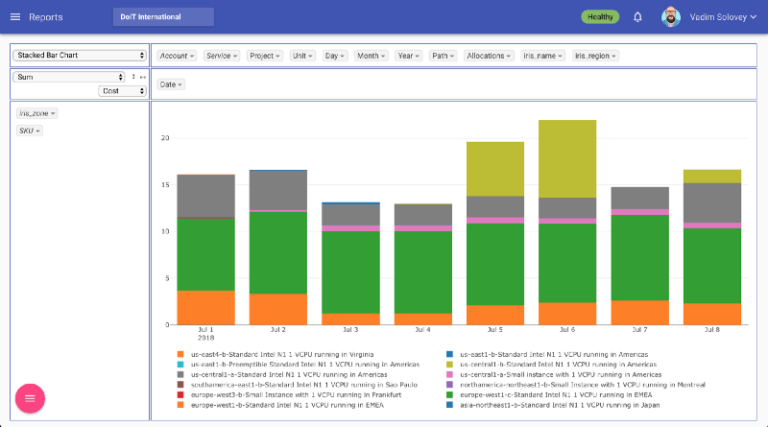 Google Compute Engine costs break-down by zone and instance type
Cost Labels is not the only great feature of Cloud Intelligence™. You can create “Cost Allocations” which are intersections of Service, SKU, Project and Labels. With cost allocations it’s easy to track costs of your complete applications or services, environments and so on.
As great example is tracking network egress traffic using the following Cost Allocation:
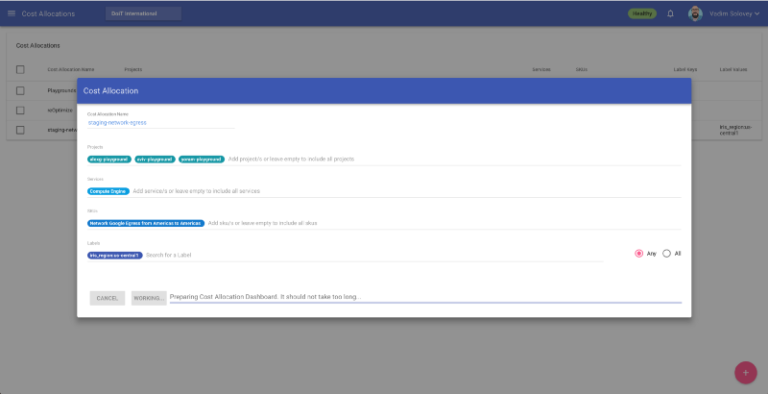 Setting up Cost Allocations in Cloud Intelligence™
Based on cost allocations, you can configure smart budgets or setup users with limited view to track only parts of your infrastructure.
We are actively looking for contributors to help us improve our open-source stack of tools for Google Cloud such as Shamash, Iris, Zorya, kubeIP and few others.
Want more stories? Check our blog, or follow Vadim on Twitter.


