
Announcement
This page is also available in Deutsch, Español, Français, Italiano, 日本語, and Português.
Manage all your Cloud Intelligence™ notifications from one page
See how each feature notifies you and manage everything you're subscribed to, all in one place. Any notification can now go to email, Slack, and Microsoft Teams at once.
By Rocío Fernández Rubio
Notification settings in Cloud Intelligence™ used to be hard to read. To check how a feature would notify you, you had to open a wizard, and personal preferences and company-wide rules lived on separate screens. Each notification could also reach only one destination: email, Slack, or Microsoft Teams.
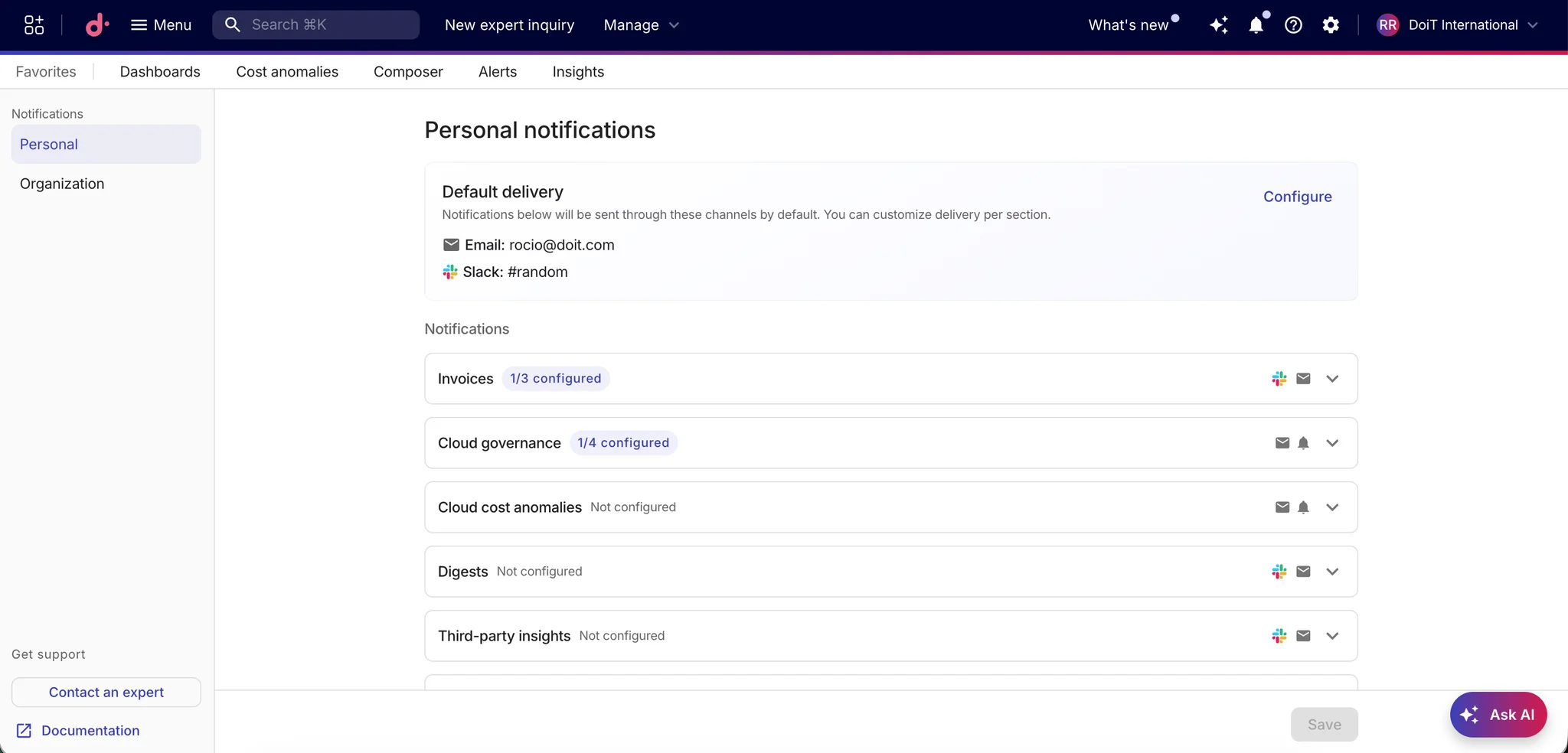
The Notifications page now puts all of it in two tabs, one for your personal settings and one for the organization. Every feature has its own section, and each section shows what you have selected right there, so you can read your setup without opening anything.
What you get
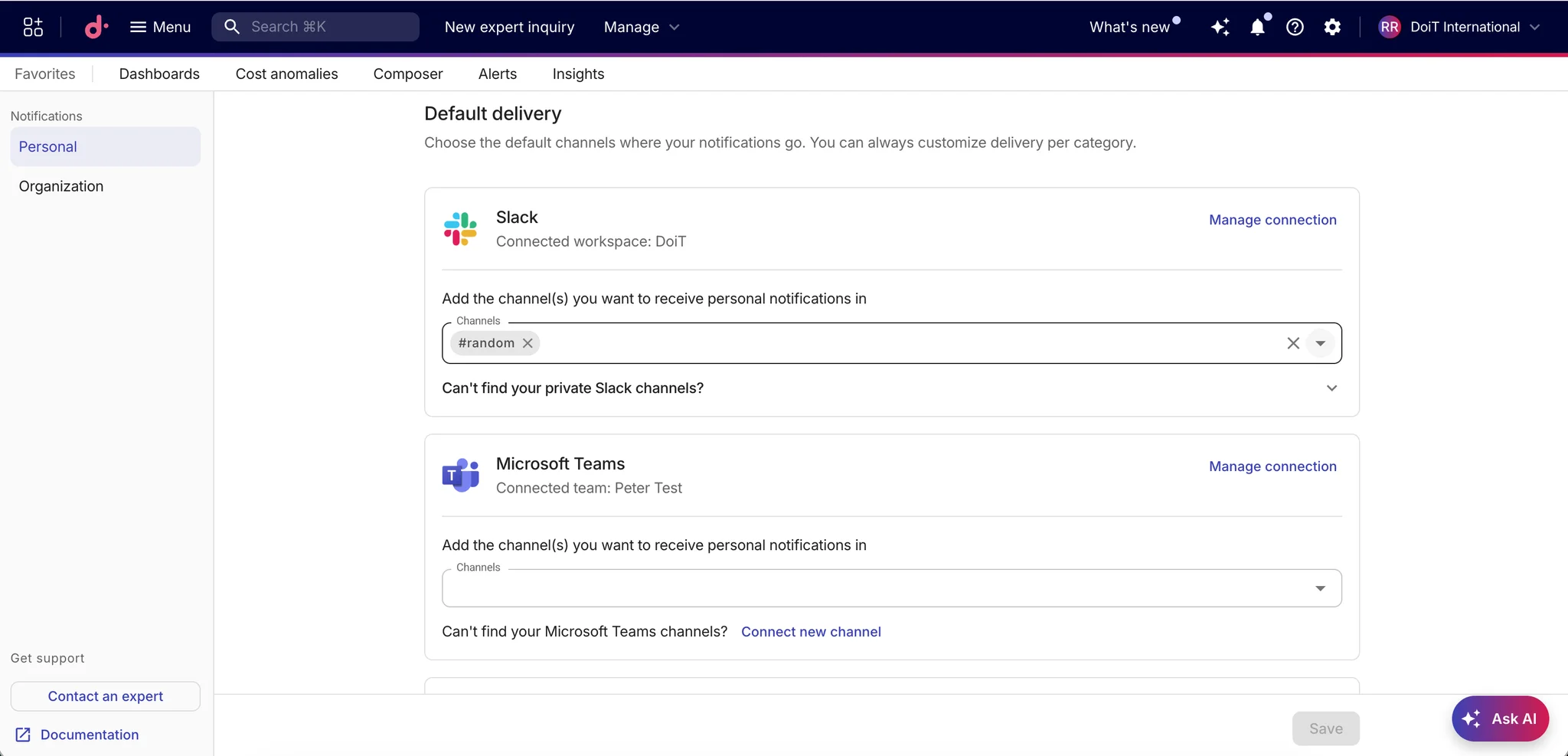
- Default delivery. Pick your preferred channels once. Every group inherits them, and you can override any group when it needs different routing.
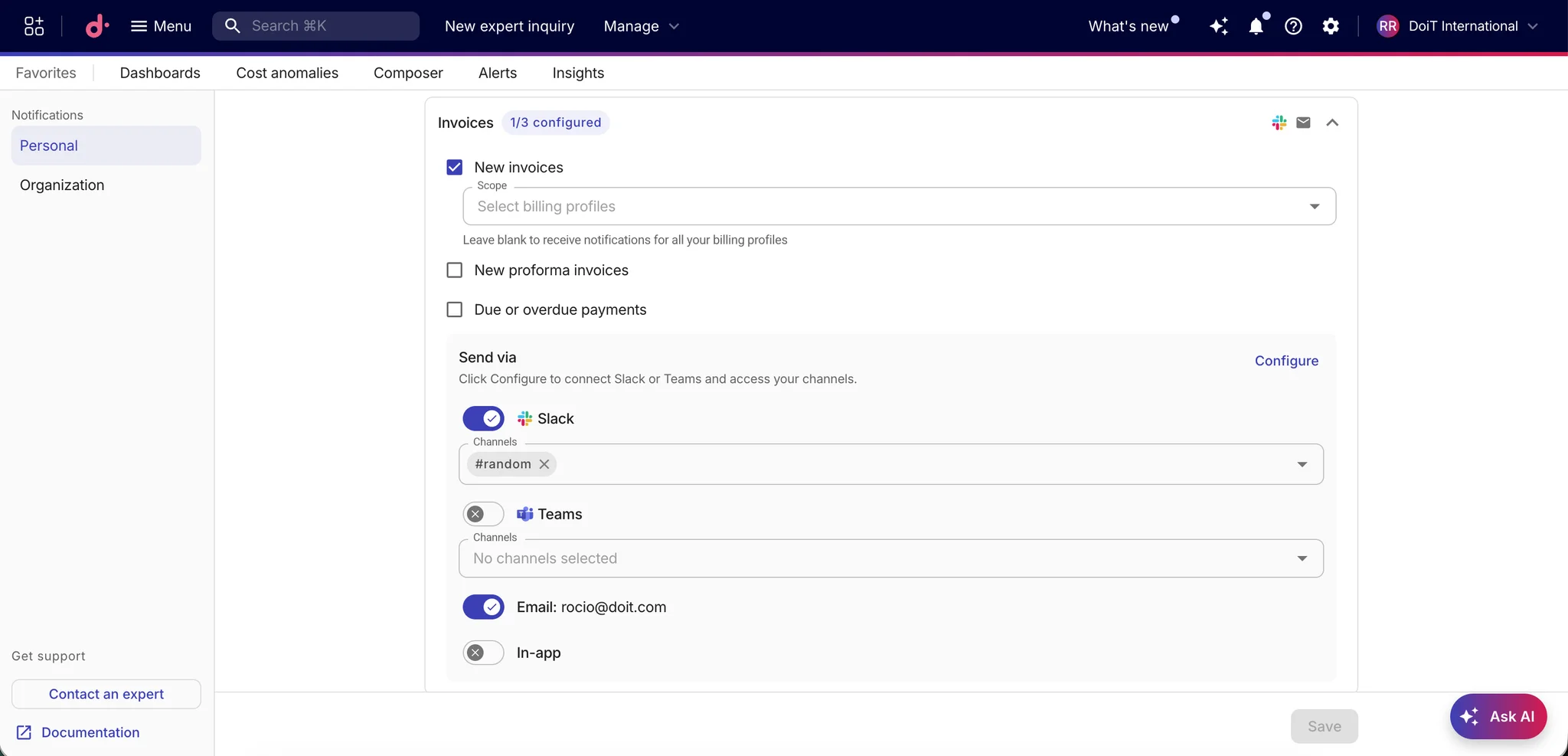
- Notification groups. Notification types are organized by feature in collapsible groups. Each group has its own "Send via" control, and your current selection is visible without expanding anything.
- Multiple destinations. Select email, Slack, and Microsoft Teams together. Send a budget alert to the finance channel in Slack and to your inbox in the same step.
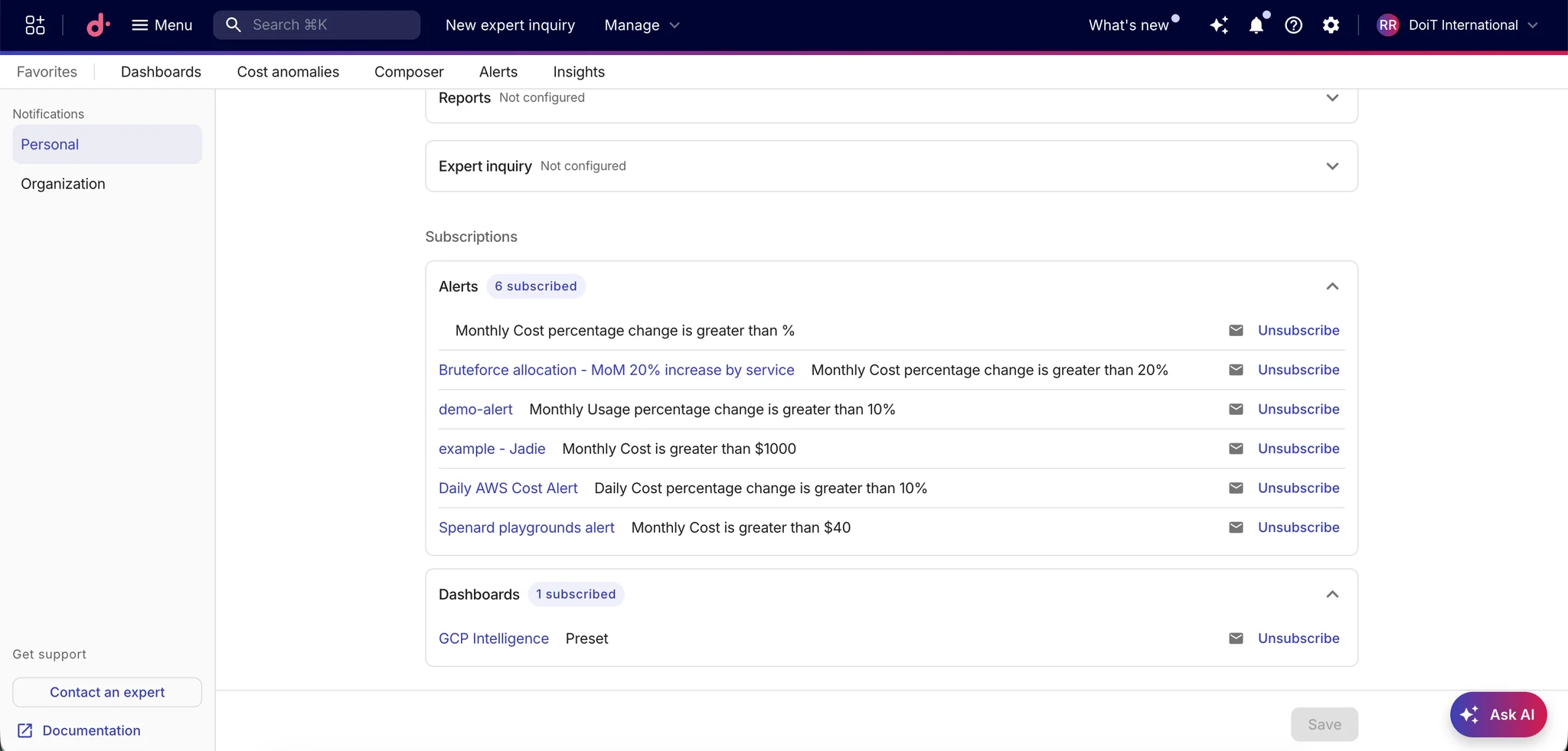
- Subscription management. See every Alert, Budget, Report, Dashboard, and Commitment you're subscribed to in one list, and unsubscribe from there.
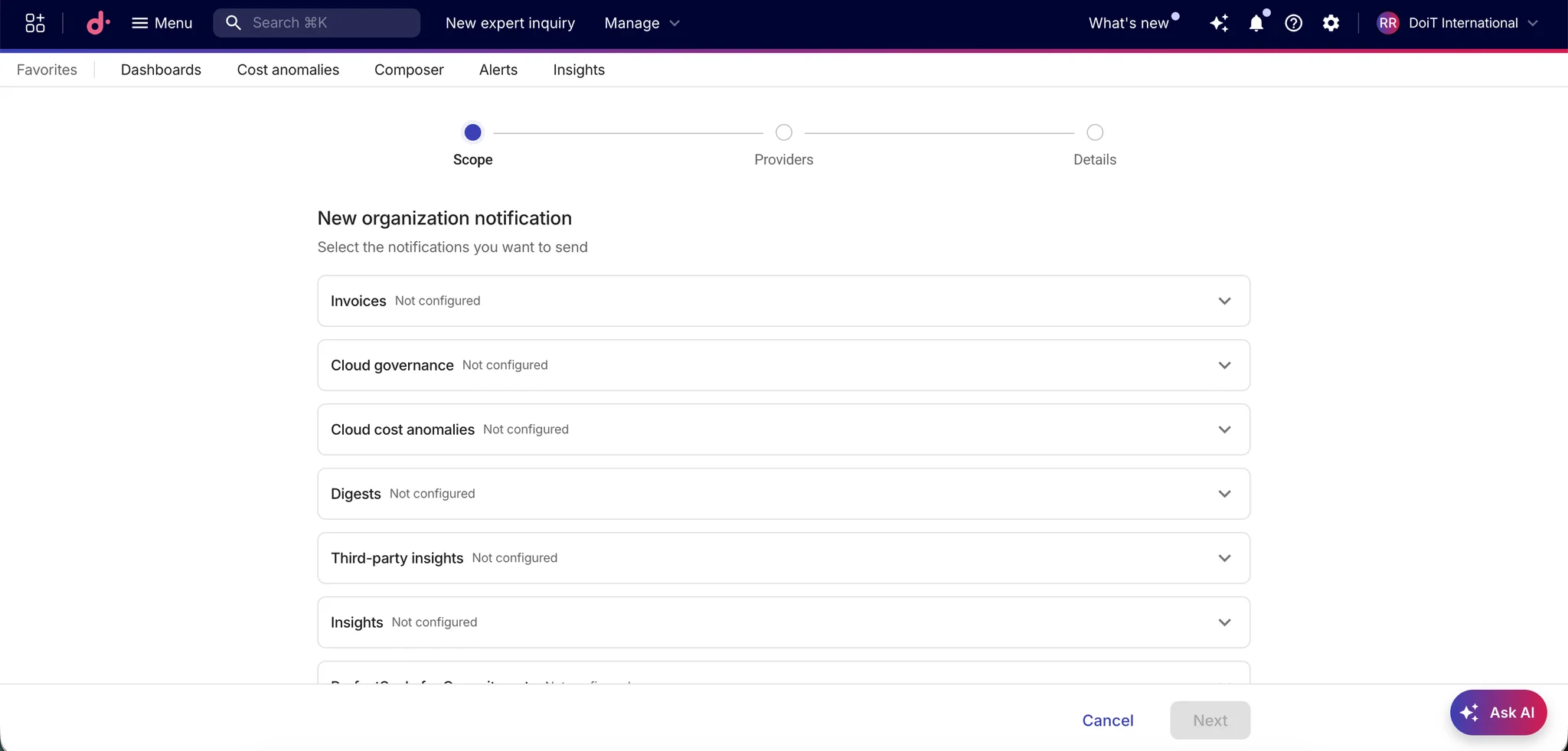
- Organization notification flow. Create or edit organization-wide notifications in three steps (Scope, Providers, Details). Providers now supports more than one destination.
What comes next
The new structure and the step-by-step flow are the base for what we're building next. First, setting up notifications from the feature page itself, in a modal, so you don't have to leave what you're working on and lose your place. Second, a table for organization subscriptions, giving organization-wide notifications the same single list you now have for your own.
Get started
- Open Notifications in the Cloud Intelligence™ console and set your default delivery.
- Review your groups and override the ones that need different routing.
- Create or edit organization-wide notifications in the new flow.
