

Intro
As your cloud spend grows and becomes more complex, breaking down your bill by service or project/account alone won’t cut it if you want to truly understand how costs are split across your organization.
You’ll want to organize costs in a way that aligns with how your business operates. For instance, you might have multiple teams, environments, or other categories you’d like to allocate costs to. But these categories can have complex definitions. For example, your company’s definition of “Staging Environment” might include all projects or accounts that begin with the word “staging”, across multiple teams or services.
Using Allocations in DoiT Cloud Intelligence, you can map cloud costs to custom business categories by grouping across multiple cost dimensions—such as Labels/Tags, projects, accounts, service types, regions, or even billing metadata. Allocations support both direct and shared cost strategies, including automated rules for proportionally distributing shared services like support or networking.
Let’s explore what Allocations are and how they work. Jump down to the interactive tour if you want to.
What are Allocations?
An Allocation is a logical grouping of cloud resources that defines a cost category unique to your organization.
Companies use Allocations in the DoiT Platform to understand cloud consumption in the context of their business.
They’re also a foundational step toward enabling cost accountability across teams and functions.
Let’s explore some examples of Allocations and how they work in practice:
Using Allocations to define engineering team costs
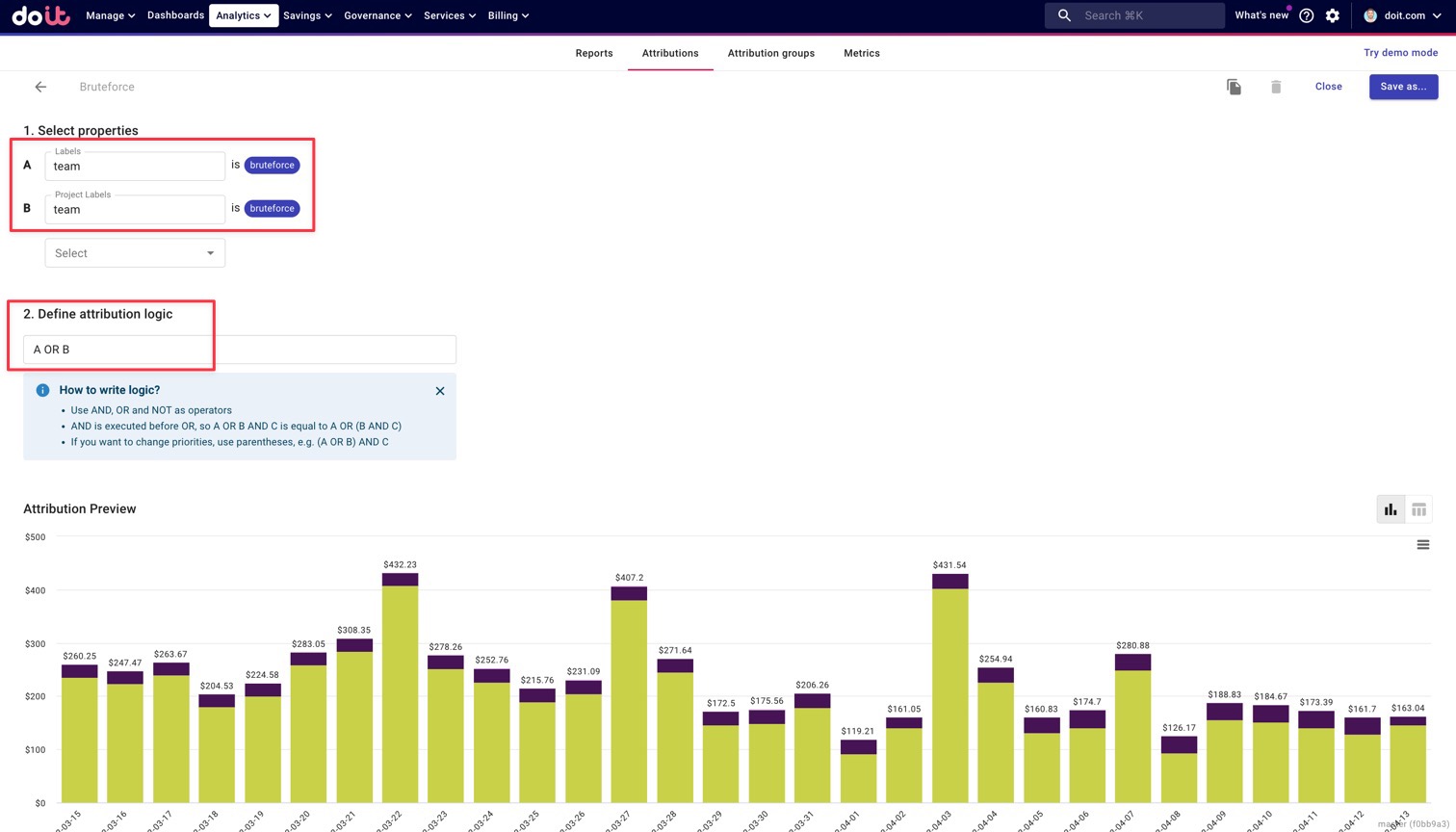
At DoiT, we use Allocations internally to define each engineering team’s cloud footprint. In this example, we’ve created an Allocation for team Bruteforce by grouping resources where either a resource-level label or a project-level label equals “bruteforce.”
We apply an “A OR B” logic to ensure the Allocation captures resources that are:
- Tagged with only the resource label team:bruteforce
- Tagged with only the project label team:bruteforce
- Tagged with both
This approach gives us comprehensive coverage of Bruteforce’s costs, regardless of where the label is applied.
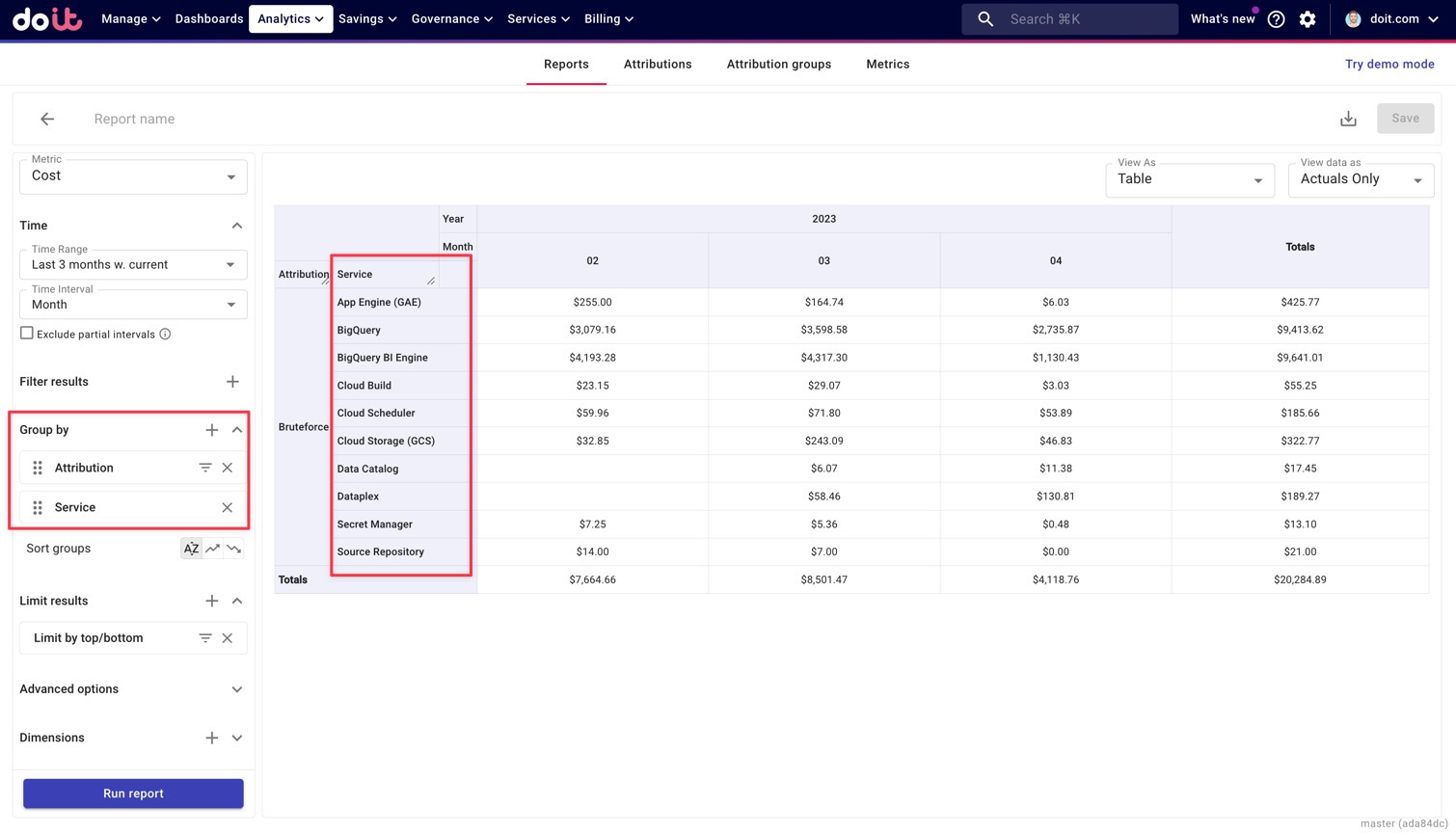
Many customers use Allocations like this to power team-specific dashboards and reports that surface major cost contributors.
In the example below, we break down Bruteforce’s costs by service, which gives us immediate visibility into what’s driving spend for that engineering team.
Using Allocations to define environment costs
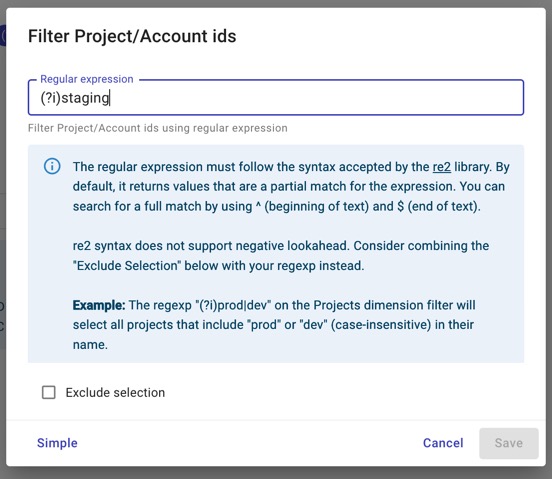
In this example, we define our Staging Environment costs by grouping together all Google Cloud projects that include the word “staging” using regex matching.
This is a good demonstration of how you can build Allocations without relying on labels or tags.
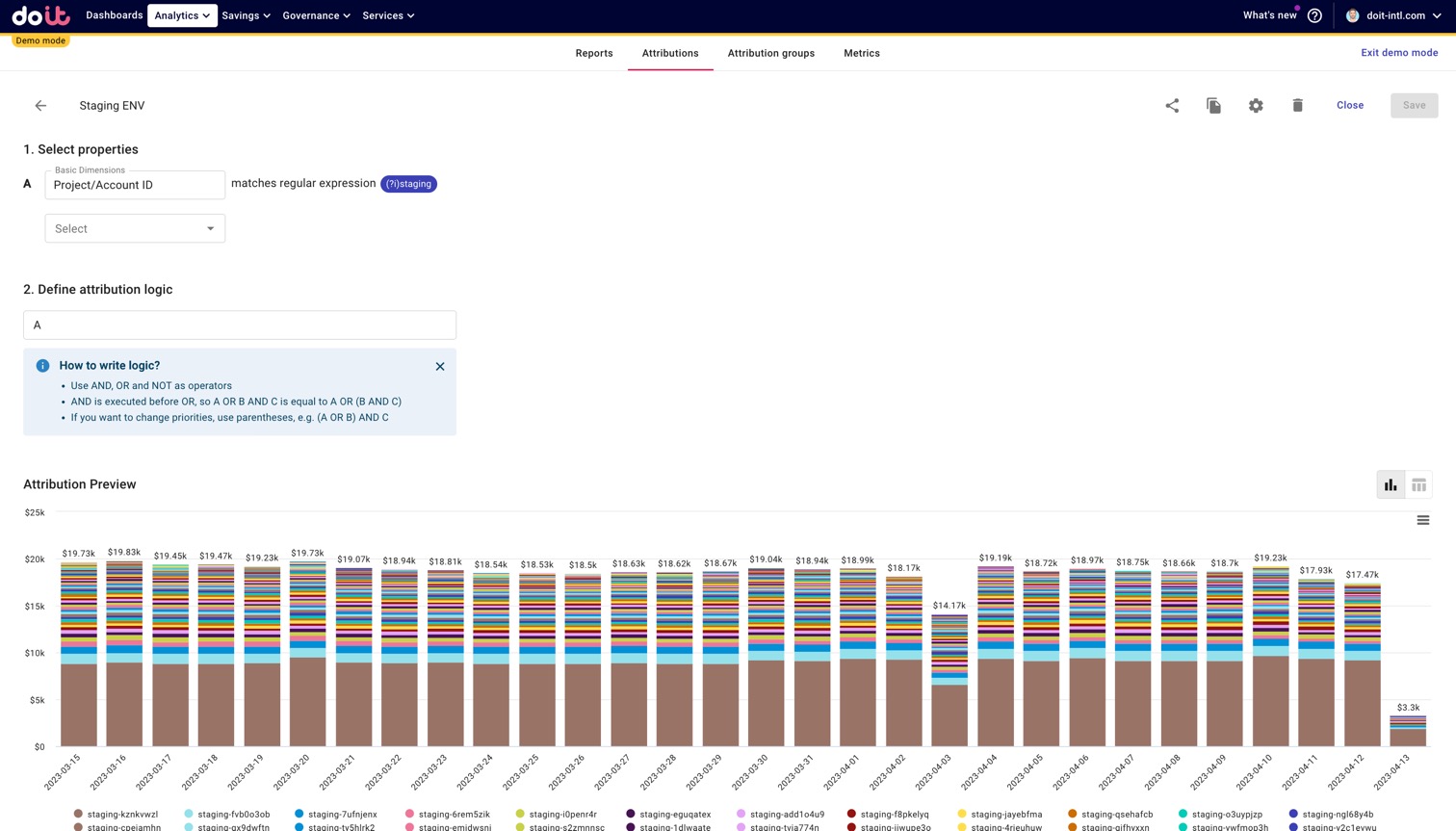
Because staging projects are often created or removed over time, using regex ensures the Allocation stays up to date automatically—without needing to manually update it every time a new project is added.
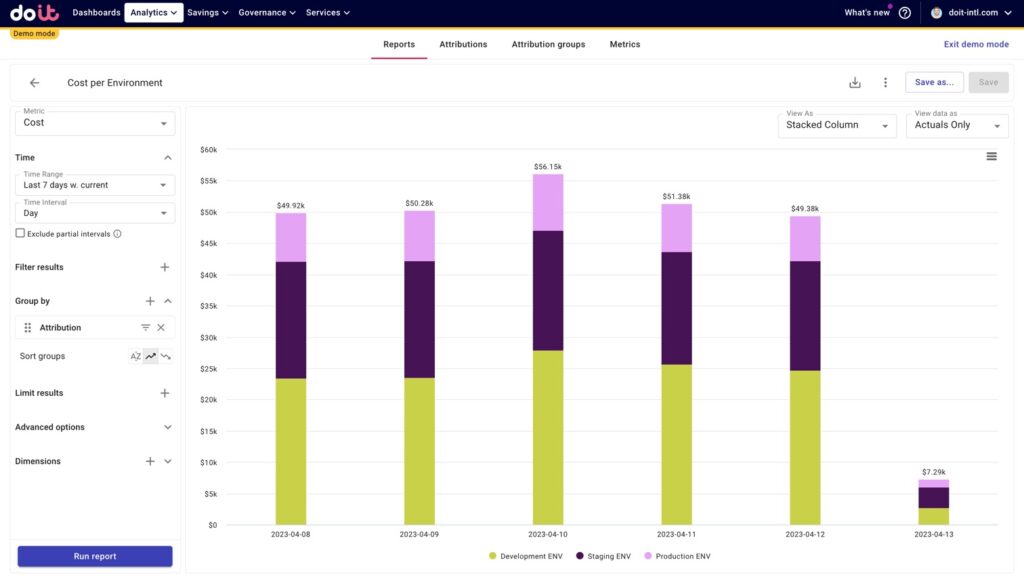
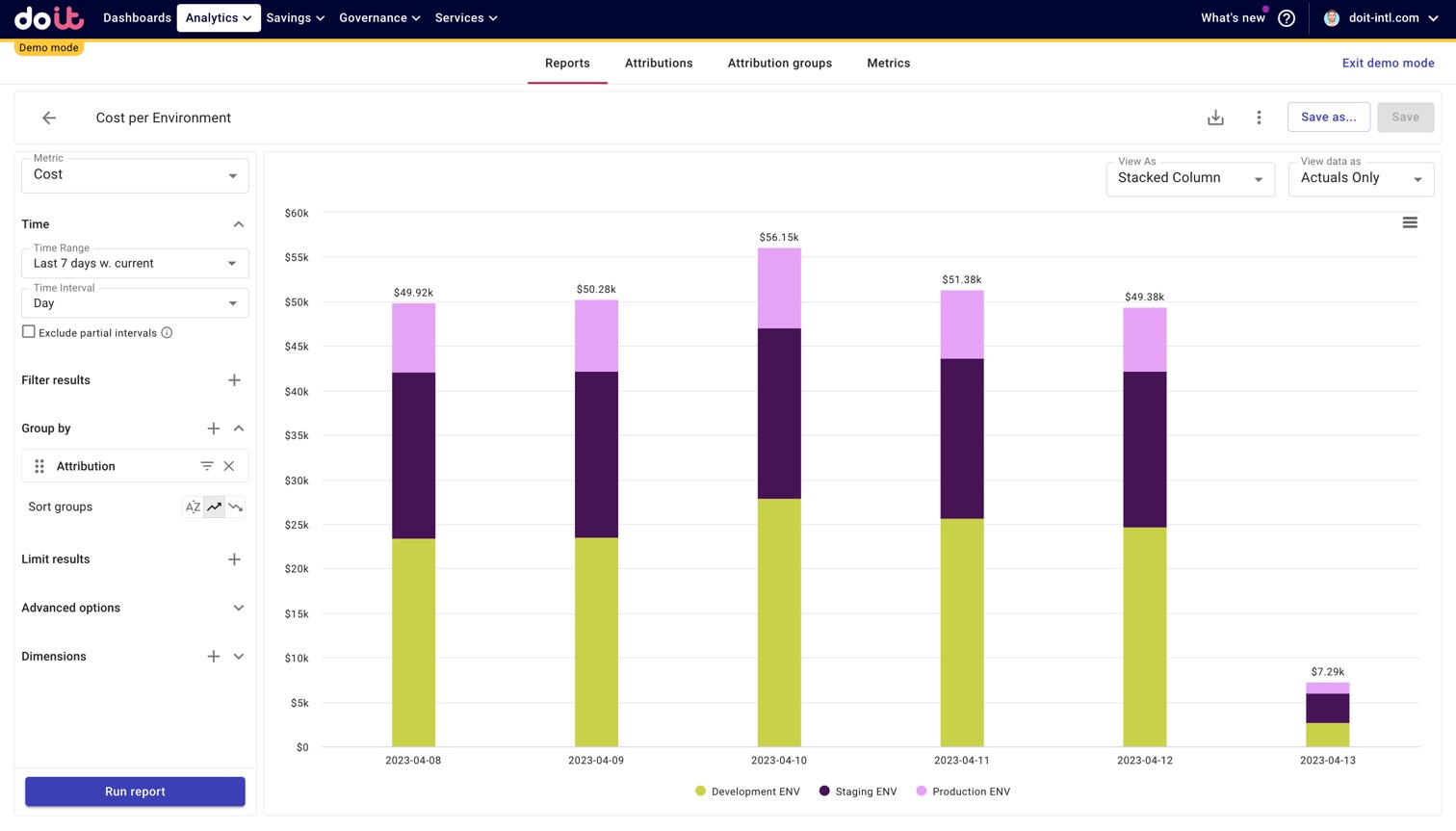
In the example below, we’ve created a Cost per Environment report that compares three Allocations: Development, Staging, and Production. This allows us to easily track environment-specific usage and compare trends over time.
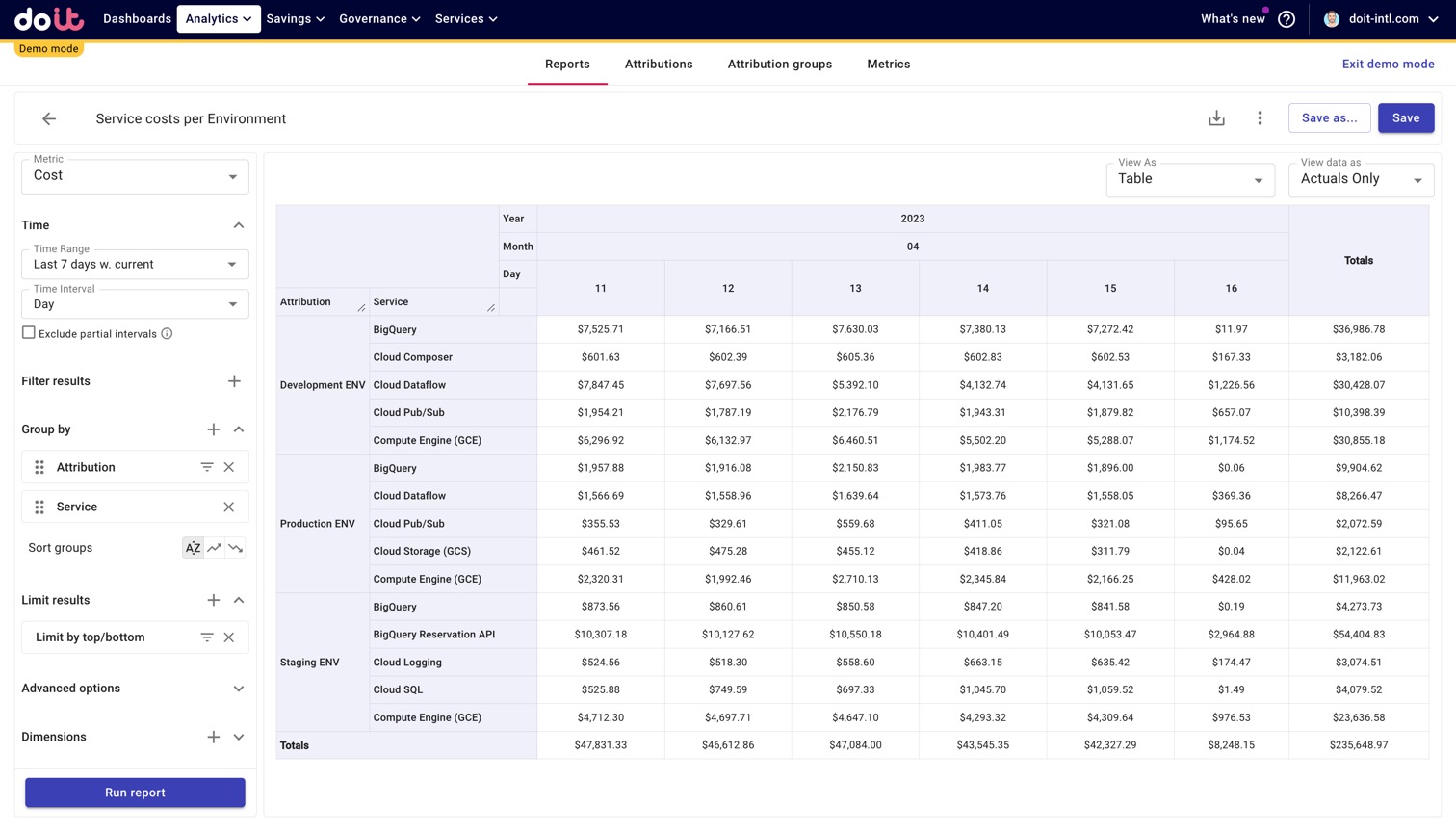
We can also break down each environment’s costs by service, account, or region to understand what’s driving the differences.
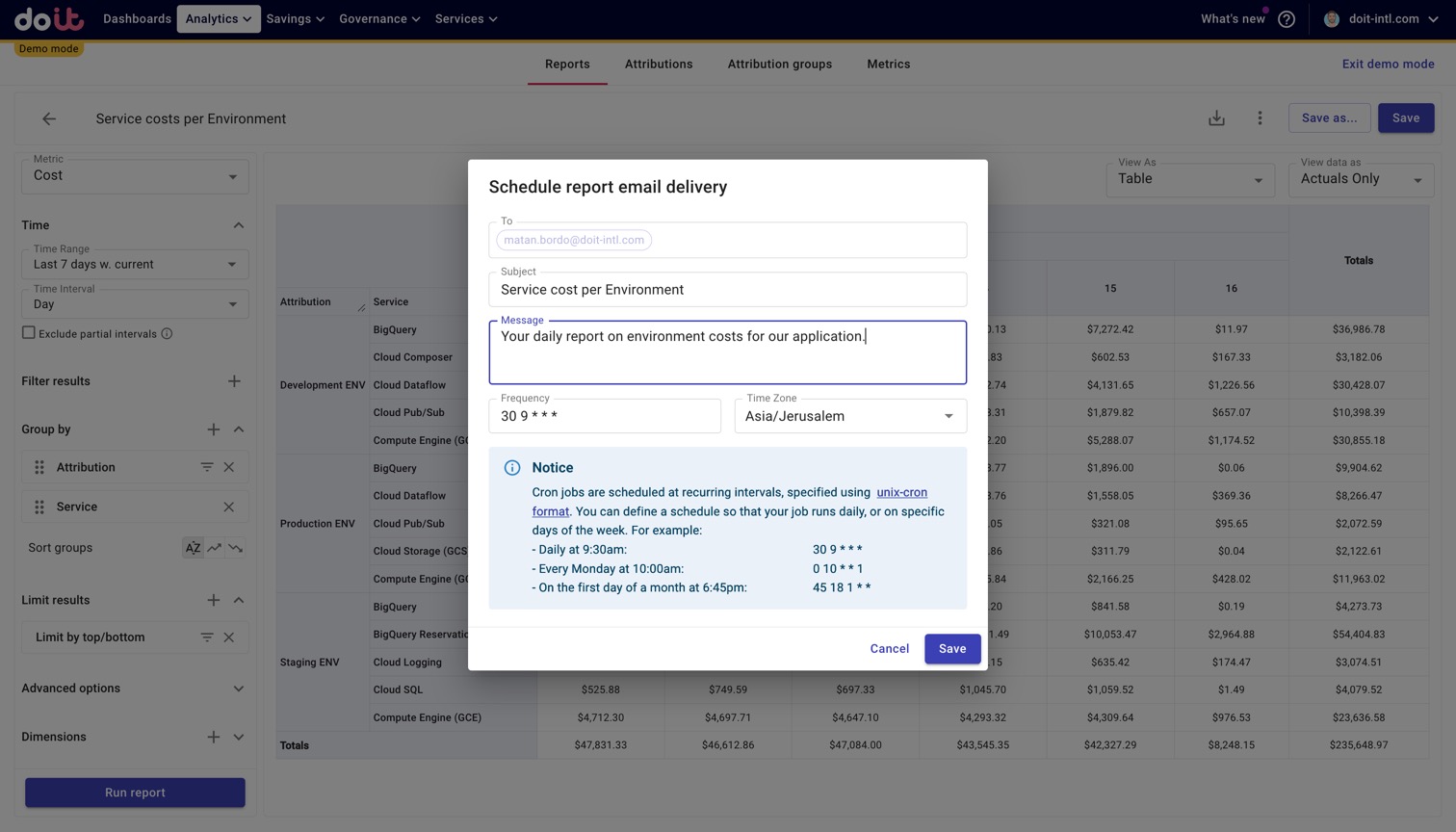
Finally, you can schedule any of these reports to auto-refresh and send to key stakeholders on a custom cadence—to ensure everyone stays informed.
Using Allocations to estimate EBS storage savings
Allocations aren’t limited to organizational or team-based categories—you can also use them to group infrastructure components for analysis and scenario modeling.
For example, let’s say you're using GP2 volumes for AWS EBS and want to estimate potential savings from migrating to GP3.
You’d start by creating an Allocation that captures all EBS-related costs tied to GP2 volumes. This can be done by filtering on relevant AWS service metadata—such as volume type, usage type, or SKU—that identifies GP2 usage:
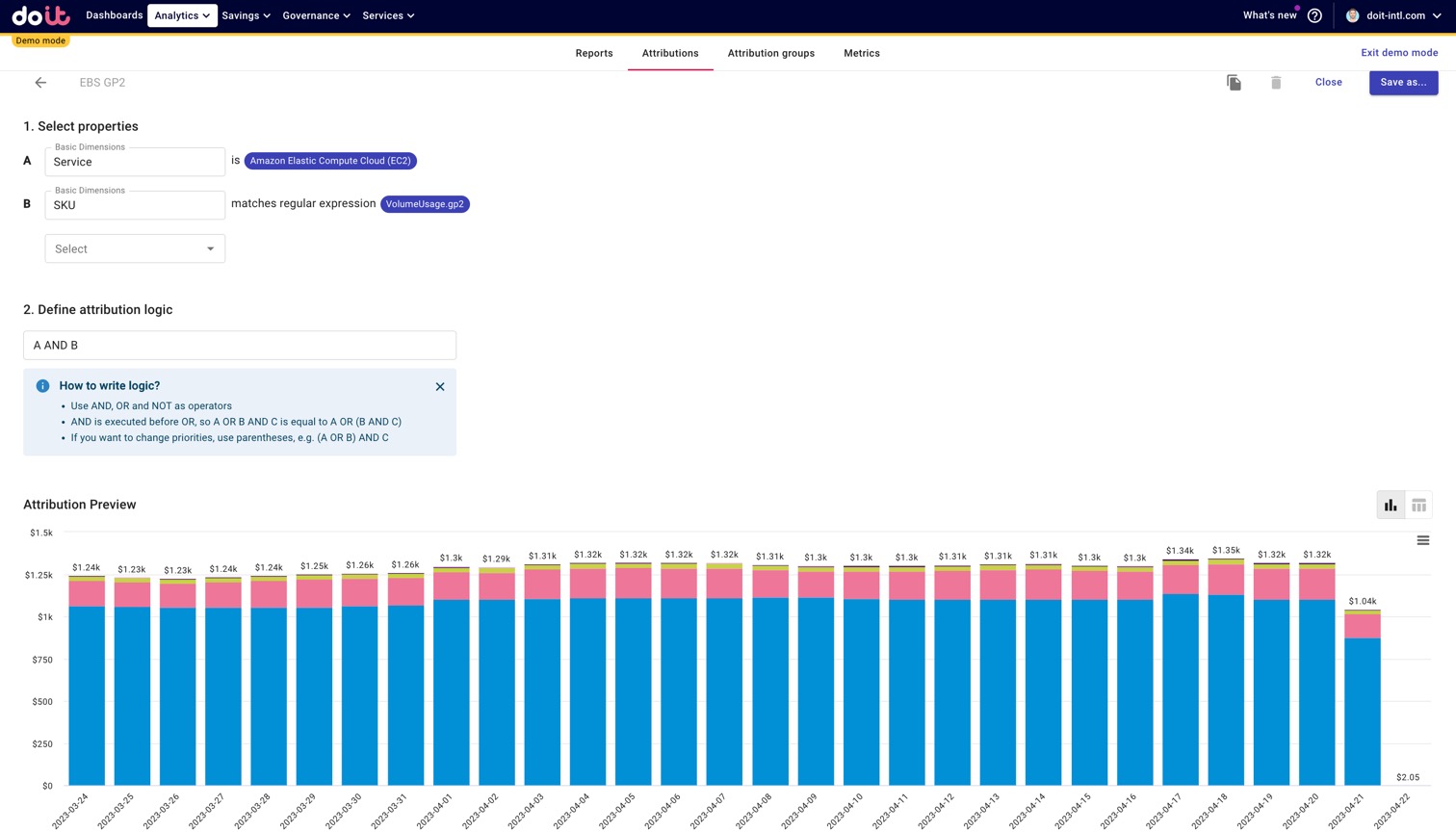
Once you’ve defined the Allocation, you can pair it with Metrics in the DoiT Platform to run your savings model.
According to AWS, GP3 volumes offer up to 20% lower pricing per GB compared to GP2. To estimate your potential savings, create a custom metric that multiplies the GP2 Allocation cost by 0.2.
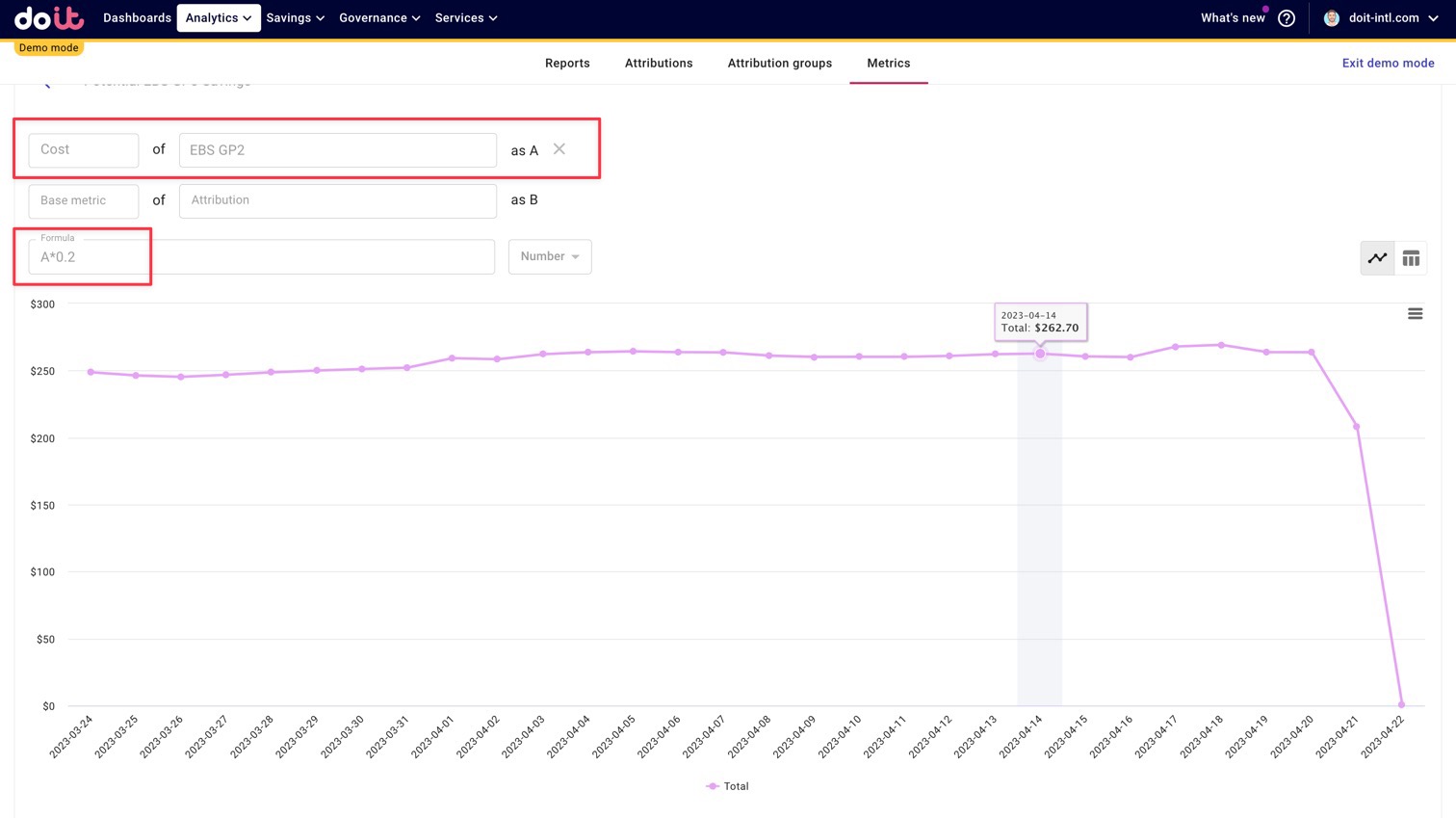
Alternatively, to estimate the adjusted cost if you were already on GP3, multiply the same Allocation by 0.8.
This gives you a lightweight, self-serve way to:
- Quantify daily potential savings
- Prioritize storage migration efforts
- Validate architectural decisions with real cost data
Additional ways to use Allocations
Once you've defined Allocations, they become powerful inputs across the DoiT Platform— and unlock more precise, actionable, and business-relevant insights throughout the platform.
We’ve already covered how Allocations help you build more meaningful cost reports. But their utility extends much further. DoiT customers also use Allocations to:
- Allocate spend accurately
- Map every dollar of cloud cost to a specific business unit, product, or initiative—filling gaps left by inconsistent tagging or fragmented billing structures
- Improve forecast and enforcement accuracy with Budgets
- Set Allocation-scoped budgets to track whether a team, environment, or application is trending above forecast and proactively alert owners.
- Create granular, targeted alerts
- Surface anomalies, cost spikes, or usage changes at the Allocation level—rather than just account- or service-level—so the right teams can take action.
- Enable better cross-team conversations
- Because allocations mirror how your business is structured, they serve as a common language for Finance, Engineering, and Leadership to evaluate cost behavior and make decisions.
- And more!
You can explore the rest of them in this post.
What about Tags and Labels?
You might be reading this thinking, “But can’t I accomplish this with tags and labels?” Are Allocations a replacement for tags and labels?
They’re two separate concepts, but with some overlap. Allocations help you organize your cloud spend without requiring perfect tagging. You can absolutely use tags and labels as inputs to build your Allocations—but you’re not limited to them.
Yes, you can achieve similar groupings using only tags and labels if your organization maintains strong tagging hygiene. That means:
- One consistent tag key for each category (e.g., environment, product, team)
- A defined set of values per key (e.g., prod, dev, staging)
- 100% tag coverage across all resources
Here’s how a report in AWS Cost Explorer might look with correctly and consistently applied AWS tags:

Duplicate Tag keys and/or values
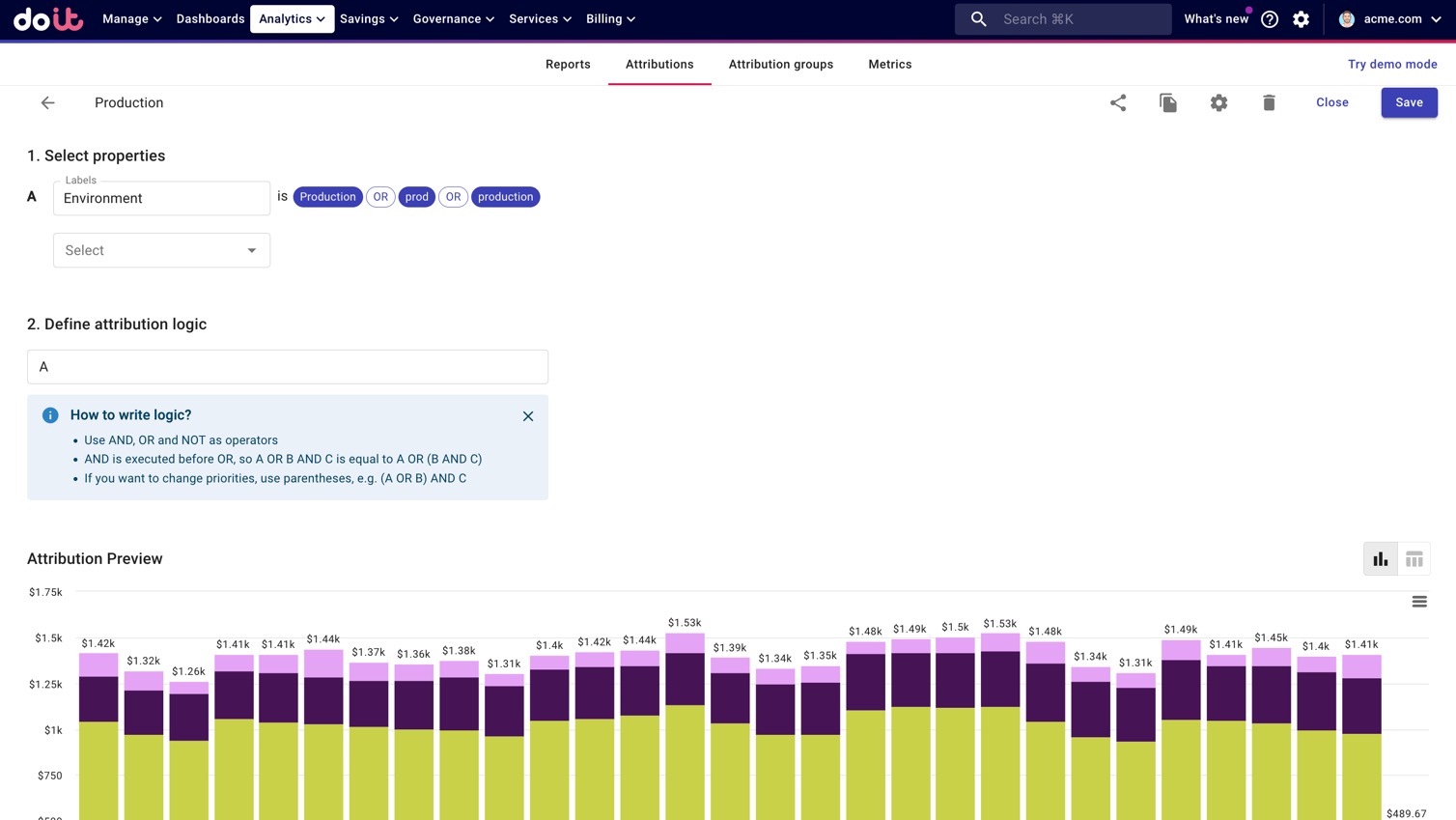
However, many organizations face a more fragmented tagging reality. You might have inconsistent tag keys like Environment, Env, or environment, and tag values like prod, production, or Production.
This inconsistency makes cost reporting harder—since you can’t natively group those values together into one logical unit.
With Allocations, you can define a single business-aligned grouping (e.g., “Production Environment”) that includes all of these tag permutations in one rule.
Below we’ve grouped resources with Environment tag values of prod, Production, and production into a single Allocation:
Multi-cloud
Let’s say your application runs across AWS and Google Cloud. How would you measure the full cost of that app?
You can’t do that natively within either cloud provider console—each one only sees its own data.
With Allocations in the DoiT Platform, you can group resources across both clouds using shared metadata like tags, labels, account IDs, project names, and more. This gives you a unified cost view of any multi-cloud service or product.
Tags not appropriate for the cost grouping you’re defining
Sometimes tags just don’t make sense for the grouping you want to create.
For example, you may want to define “Staging Environment” costs by aggregating AWS accounts or GCP projects whose names contain “staging”—regardless of whether those resources are tagged.
With Allocations, you can use project/account names, regex matches, and other dimensions to build those cost groupings.
Legacy systems not working with Tags
Some customers have legacy systems that either don’t support tags or can’t enforce tagging standards.
In these cases, there’s no good workaround in native consoles. But with Allocations, you can group those untagged resources using other metadata—such as account ID, region, service name, or custom logic.
Conclusion
Whether you want to understand cloud spend in the context of your business or drive cost accountability across teams, it starts with Allocations.
Ready to get a clearer picture of your cloud costs? Take the interactive tour below—or contact DoiT to schedule a tailored demo and see how Allocations and the rest of the DoiT Platform can work for your team.
Take an interactive tour of Allocations