
When BigQuery Editions were announced in late-March of last year, companies had until July 5, 2023 to make a decision for each of their projects:
- Switch to using Editions
- Continue using (or switch to) on-demand pricing that increased by 25%
- Purchase an annual flat-rate commitment to keep using flat-rate for a year
Many chose to purchase 1-year flat-rate commitments in order to give themselves a year to re-architect their BigQuery workloads and better understand the new autoscaler, slot-hour metrics, and Editions overall.
If this sounds like you, you have an important decision — with huge cost implications — to make as your flat-rate commit(s) begin to expire: switch to Editions or go on-demand.
That’s why we’re going to explain how to smoothly transition your expiring BigQuery flat-rate commitments to a different pricing plan, and keep your usage optimized afterward.
Specifically we will cover:
- Which types of workloads work better on Editions vs. on-demand pricing
- Keeping your workloads optimized after transitioning from flat-rate (or in general)
We also covered this in our Cloud Masters podcast, if you prefer to listen/watch over reading:
Transitioning off of your expiring flat-rate commitment
If you don’t make a decision before your flat-rate commitment expires, your project will automatically convert to an Enterprise Edition reservation, with the baseline and max slots set to the slot count you previously committed to.
And because jobs on Enterprise Edition will cost you approximately 2.53x more per slot used vs. flat-rate, you should determine beforehand whether Enterprise Edition — or Editions in general — make sense for your workload.
However, it’s not totally straightforward which pricing plan may be right for you.
Why “it depends” which BigQuery pricing model is best for you.
Before we go into general situations that each pricing model is best-suited for, let’s review a couple things you should know about each model and evaluate them.
On-demand
Going with on-demand will give you more compute capacity at a better price than any Edition.
But with that, because you’re billed on data processed or scanned, jobs that scan a ton of data may be more expensive under on-demand. Additionally, you’re capped at 2,000 slots.
BigQuery Editions
With BigQuery Editions, you’re billed per slot-hour for slots allocated, not slots used. This is important to keep in mind when using the slots autoscaler that comes with Editions.
Perhaps while on flat-rate, you found yourself needing more slots than what you committed to during certain periods of the day. The autoscaler might tip the scales for you in the direction of Editions in this case.
But you need to be careful because the autoscaler scales in 100-slot increments, for a minimum of 60 seconds. This leaves you vulnerable to slot-wastage or overspending on slots.
For example, if you have a job that needs 101 slots, the autoscaler will scale you to 200 slots, forcing you to pay for 99 slots you didn't need.
Or you might have a job that requires 200 slots for just six seconds. In this case, you’d pay for 200 slots for 54 seconds more than you needed them for.
Rule of thumb for choosing the right pricing model
You’ll need to look at how many slots your job is using vs. the data you’re scanning to determine whether a job is cheaper on on-demand or Editions. Additionally, you’ll also want to consider speed/performance needs.
For example, you might be performing lots of compute–intensive, light-on-slots statistical analysis jobs (aggregations, k-means, etc.). If you’re scanning 1 TB of data each time to perform this job, it’ll cost you $6.25 on on-demand. However, if you put this job on Standard Edition and dedicate 100 slots to the job, it might cost you only $2.00.
Multiply this by the amount of times you’re running this job and you’ll see a meaningful difference between the two pricing models.
It might take longer for the jobs to run on Editions, but maybe the 68% cost difference is worth it to you.
You’ll have to decide on a workload-by-workload basis.

Which workloads are best-suited on BigQuery Editions?
In general, long-running workloads with very little spikes are a great fit for Editions. Even better if these workloads are reading tons of data. This is because the BigQuery autoscaler can be aggressive when it comes to spiky workloads.
For instance, imagine having a project which runs a slot-intensive BigQuery job at a specific time of day.
If you run this on Editions, your slots used will spike while the job runs (with any additional slots beyond what you need billed as well, for a minimum of one minute), leading to unpredictability in your charges during spiky periods.
However where you have consistent, yet significant BigQuery workloads, purchasing slots via the Editions pricing models can often be cheaper than on-demand pricing and will allow for consistency in the availability of your BigQuery compute resources at a predictable price point you can plan for.
Examples of these workloads can be long-running, regular analytics jobs, or a machine learning task that’s crunching a lot of numbers and running for hours at a time.
Which workloads are best-suited on BigQuery’s on-demand pricing?
On the other hand, if you’re dealing with spiky or sporadic workloads — short bursts of intense processing followed by long periods of inactivity — on-demand pricing is often the better option.
You might see this with dev/test projects, or with BI workloads. In those cases it often makes sense to pay for the bytes processed in those workloads as often the cost involved in running those workloads will be far less than paying for even a small BQ Editions reservation.
Additionally, consider jobs that don't process data, but still utilize slots. BigLake metadata refreshes, where the table schema is refreshed and reloaded without actual data processing, are a prime example. If this job was in a project using Editions pricing, you’d pay for the slots scaled (not used). But you pay $0 for it if it’s in a project utilizing on-demand pricing.
Split your workloads to optimize BigQuery costs
When it comes to BigQuery pricing, there’s no “one-size-fits-all” approach.
Since you can utilize different BigQuery pricing models across projects, you’ll first want to make sure your workloads are split across dedicated projects, and not grouped into a single project.
Placing different workload types in different projects — and using different BigQuery pricing tiers in those projects — is a great way to reduce your BigQuery costs because it makes it easier to match the right pricing plan for each workload.
If your workloads aren’t already isolated into different projects, you may want to do this first prior to
For example:
- ETL and ELT workloads should be in a separate project from your R&D workloads
- Spiky, short-running workloads should go in a project that utilizes on-demand pricing
If most of your workloads are in one main project, you might worry that breaking up your project will be too complicated. There will be configuration changes to consider — you might have to change your macros if you’re using dbt, for example. But consider the consequences of not splitting your BigQuery workloads into different projects.
Imagine that a company with its daily data pipeline jobs in the same project as ad-hoc, exploratory data analysis jobs. If the project was using a BigQuery Edition, they’d be overspending on the ad-hoc queries and vice-versa if the project were utilizing on-demand pricing.
Calculating which BigQuery pricing tier is best for your workload
The BigQuery experts at DoiT developed a script to help you figure out which pricing model makes sense for each of your workloads (i.e. projects).
It works by looking at every query ran in a project, over a specified (by you) timeframe and returning a pricing model recommendation (on-demand, or a specific Edition).
Here are some additional scripts developed by our team that you might find useful:
- Most complex queries (defined by average slot usage during the job).
- Most expensive queries, from most expensive to least expensive
- General job information
- Whether you should switch to Physical Storage or stay on logical storage
How to keep your BigQuery costs optimized
Once you’ve determined which pricing model matches each of your workloads, you’ll want to ensure your costs stay optimized moving forward. In this section, we’ll go over several tips — some old, some new with the introduction of Editions — that’ll help you ensure you’re not overspending on BigQuery.
Partition and cluster your tables to reduce data processed
Reducing the bytes processed in your queries will improve your query performance while reducing BigQuery costs on either pricing model — and partitioning and/or clustering your tables are a great way to do this.
For projects that use on-demand pricing, it will directly reduce your analysis costs since you’re paying based on the data you scan.
And with BigQuery Editions, the more data a query needs to process, the more slots are allocated. So even though BigQuery Editions are priced on slot-hours, reducing the bytes processed can indirectly lead to fewer slots being required.
Clustering BigQuery tables
Clustering improves your query performance by arranging your table into blocks of data, based on the column(s) you cluster by. This makes it easier for BigQuery to scan only the relevant blocks of data.
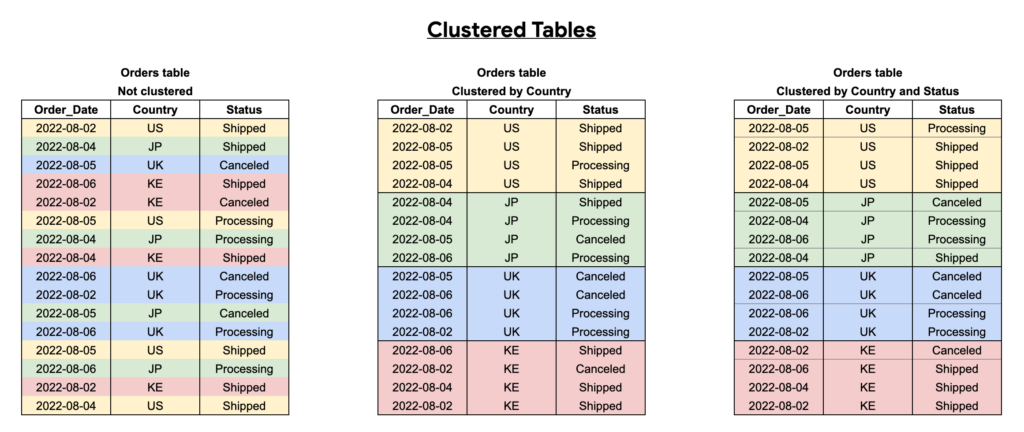
You should cluster tables by frequently-queried columns, especially when these columns contain many distinct values.
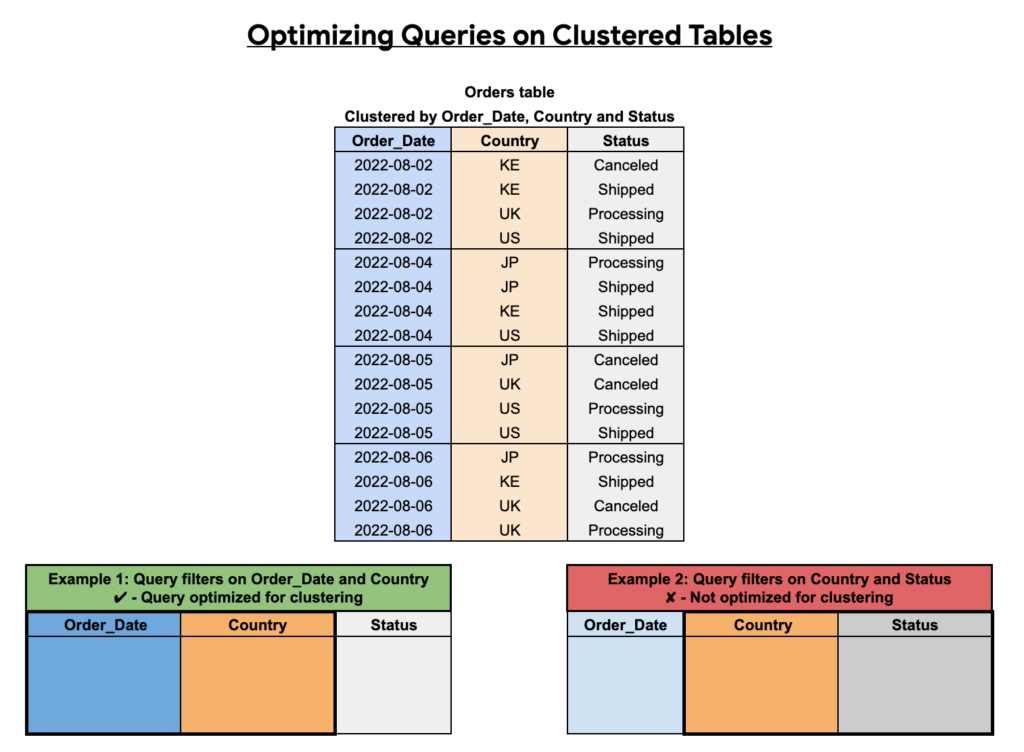
As we can see below, the effectiveness of clustering hinges on which columns you select, the order you pick, along with how you structure your queries.
Partitioning BigQuery tables
Partitioning tables helps control costs by dividing a large table into smaller chunks, allowing you to query a smaller subset of the table.
But note that partitioning a table won’t help you if you aren’t specifying the table partitions you want to scan in your queries, otherwise known as partition pruning.
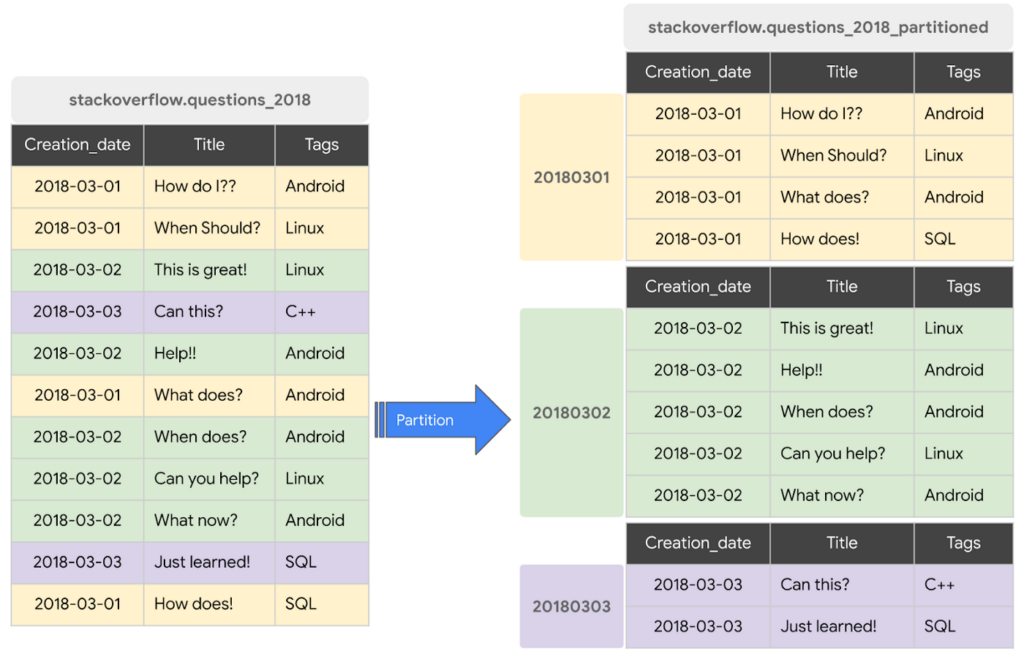
An example query using a partition for the above screenshot would be:
SELECT * FROM stackoverflow_questions_2018 WHERE creation_date BETWEEN ‘2018-01-01’ AND ‘2018-01-31’
An example query that would NOT be using a partition would be:
SELECT * FROM stackoverflow_questions_2018
While you should partition your tables in general, you especially do it if you have BI-powered dashboards running on BigQuery because implementing table partitions will make your dashboards faster and queries cheaper.
Identifying which tables to cluster or partition
In general, you should partition large (>100 GB) tables where queries on those tables frequently filter on date/time fields.
Use clustering when your queries often filter or aggregate data based on specific columns. To determine which field(s) to cluster a table by (and in what order) look at the columns most used in WHERE clauses or GROUP BY clauses — and in a more limited capacity ORDER BY clauses — in your queries. The order you choose these columns in will affect how BigQuery sorts the data, so prioritize the most frequently used filter/aggregation columns first.
But if you use DoiT Cloud Navigator, you can access BigQuery Lens, which will surface recommendations on which tables to cluster or partition — and which column(s) you should cluster or partition them on.
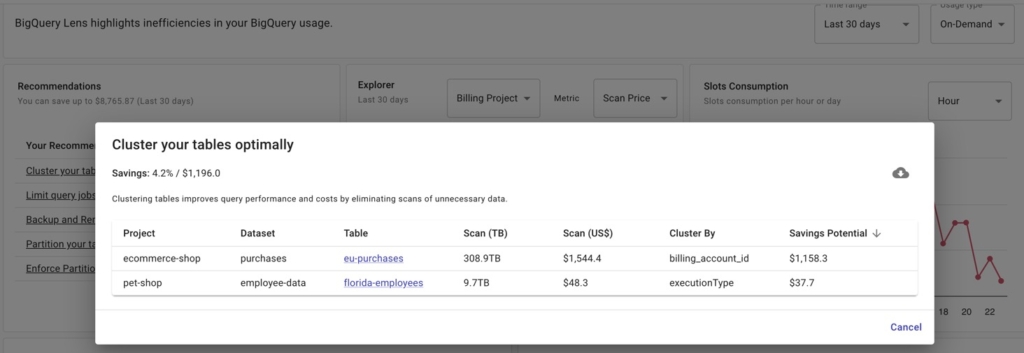
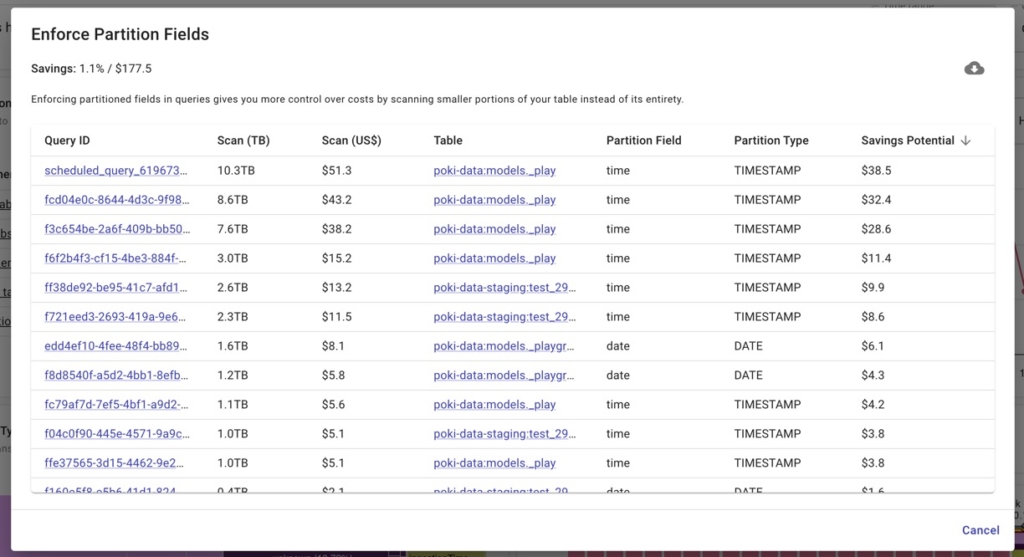
However, even if you’ve already partitioned your tables, you still need to make sure these tables are being queried using the field the table is partitioned on. This gives you more control over costs by scanning smaller portions of your table instead of the whole thing.
But when managing a team of data analysts, it’s difficult to know whether everyone is actually including the partitioned field in their queries.
BigQuery Lens identifies jobs querying partitioned tables where the partitioned field isn’t being utilized.
Configuring your baseline and max slots appropriately
If you’re already using or plan on transitioning to BigQuery Editions, knowing how to configure your baseline and max slots appropriately is crucial if you want to use BigQuery’s autoscaler to your advantage.
Tips with your baseline slots configuration
Your baseline slots are essentially the minimum number of slots that you want to always have available for your queries. When setting baseline slots, you have to remember that you are billed for baseline slots 24/7.
If you have consistent, steady workloads running throughout the day, set a higher baseline to avoid "cold starts" and queuing.
For spiky or bursty workloads, you may want to set the baseline low or even to 0 to avoid paying for unused slots. However, note that it takes a few seconds for the autoscaler to scale up from 0 to X slots. So it will take time to scale up for the first job, and if that job is still running when another job has started it will take time to scale up again.
Tips with your max slots configuration
The max slots limit sets the maximum number of slots BigQuery can automatically scale up to for your workloads. Setting the max appropriately is important to control costs and prevent the auto-scaler from over-provisioning slots.
Analyze your historical slot usage patterns (use the scripts mentioned above) to set a reasonable max that can handle peak loads while avoiding excessive over-provisioning.
Dynamically adjusting the pricing model used in your reservations
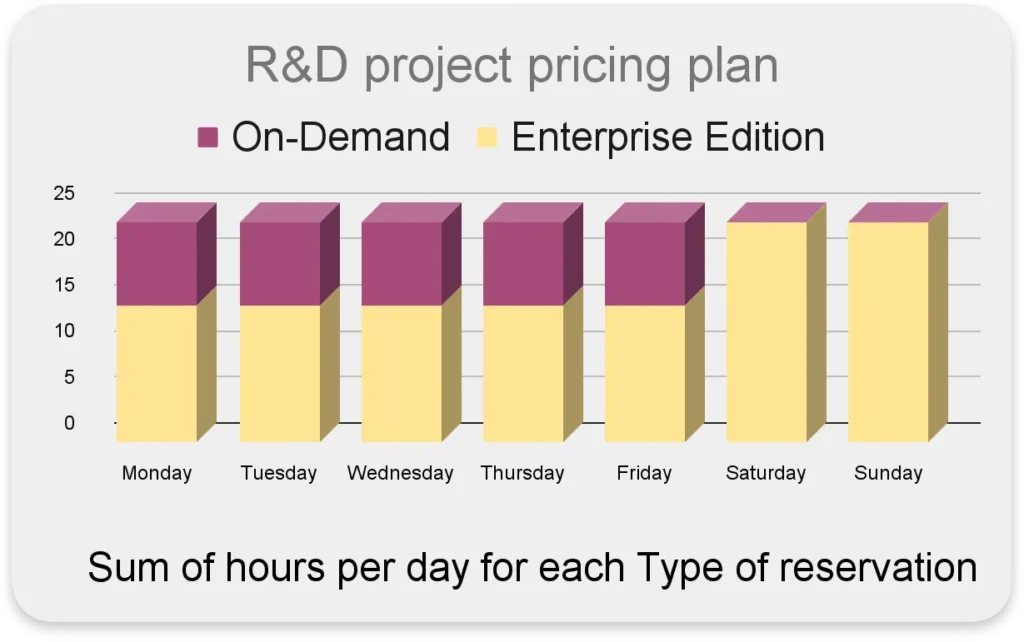
In a particular project, you might have different activities that perform better (or cost less) with Editions or on-demand.
For instance:
- Interactive queries occur primarily on weekdays during business hours
- High query concurrency with quick response times
- Particular tasks are scheduled to run during nights or weekends
In this case, it’d be ideal to use on-demand during work hours for efficient query latency and high concurrency, while during non-working hours use the ‘Enterprise Edition’ with a maximum of 100 slots.
One of our BigQuery experts, Nadav Weissman, goes over step-by-step how to automate reservation and assignment changes for this purpose here.
Best practices for dbt, Dataform, and BI tools
dbt and Dataform
First, you’ll likely want to use on-demand pricing for your dbt or Dataform jobs. dbt is compute/slots-heavy, and oftentimes you'll be better off with on-demand pricing — or at least keeping an eye on your baseline/max slots settings if you’re using Editions.
dbt is compute/slots-heavy, and oftentimes you'll be better off with on-demand pricing — or setting realistic slot counts in your baseline/max configuration for the autoscaler.
In both dbt (Incremental models) and Dataform (incremental tables), you have the ability to process new/changed data instead of reprocessing the entire dataset. This reduces the amount of data processed, optimizing slot usage and costs.
Lastly, you might benefit cost-wise from offloading dbt/Dataform transformation jobs from BigQuery to services with cheaper compute because transformations are compute-heavy.
For example, it’d be significantly cheaper to run the transformations on a VM or Cloud SQL instance then load the transformed data back into Google Cloud Storage where it will be loaded back into BigQuery already transformed. While this does require some data orchestration work from you, we’ve seen customers reduce $50 transformation jobs to $2-3 with this method.
BI tools
If you’re using a BI tool like Looker or Tableau with BigQuery primarily for read operations and aggregating data over time, you should take a look at BI Engine.
BI Engine is perfect for dashboard queries because it intelligently caches BigQuery data in memory, resulting in faster queries. And since BI Engine caches data in-memory, the query stage that reads table data is free. Instead, you only pay for reserved memory capacity.
Note that to use BI Engine your project needs to use Enterprise Edition. But if you isolate your BI workloads into their own project, the slot-hours pricing model won’t impact you as much (assuming you’re performing read operations mostly) given BI Engine’s pricing above.
If you’re also transforming data a lot in your BI workloads, this is less relevant for you as there are some limitations around JOINs.
Another approach is to utilize a “fixed-price” solution such as ClickHouse that your BI tool will query instead of BigQuery in order to either increase performance or reduce costs on your BigQuery bill. The benefit here is that you pay a flat-rate for the datastore versus a per-query rate as you would pay on BigQuery.
Conclusion
Whether or not your flat-rate BigQuery commitments are expiring, this blog post lays out a guide to help you select the best pricing model for your workloads and the work you may need to do beforehand to ensure you’re not overspending.
We also offer tips for optimizing your BigQuery costs, including partitioning and clustering tables, setting your baseline and max slots appropriately, and using BI Engine for BI workloads. By following these recommendations, you can ensure that you are using BigQuery in the most cost-effective way possible.
If you want to review your BigQuery usage with a BigQuery specialist at DoiT, book a consultation with us today!