

The challenge of getting sufficient cost visibility into your Kubernetes spend is a tale as old as Kubernetes itself.
Dynamic resource allocation and the short-lived nature of containers make it hard to attribute costs to specific applications or services. Added to this is the fact that resources are shared among various components.
Despite this, achieving cost visibility in Kubernetes is crucial for effective resource and cost management.
To alleviate these challenges, Google Cloud released GKE cost allocation late last year, which helps customers view a detailed breakdown of their cluster costs.
In this post, we'll go over GKE cost allocation and how to use its data with cost allocation features in DoiT’s product portfolio to get a granular view of your GKE spend.
More specifically, we’ll detail how a hypothetical gaming company would organize their GKE costs in a way that maps to their games, split any shared costs among them, and then understand how each game's costs are broken down by environment.
What is GKE cost allocation
GKE cost allocation is Google Cloud's recommended method of getting cluster billing information. Compared to its predecessor, GKE usage metering, it is much easier to allocate cluster costs to users with GKE Cost Allocation and makes it possible to view cluster and namespace costs alongside other Google Cloud service costs — something not possible with usage metering. It’s also intended by Google Cloud to replace GKE Usage Metering in the future.
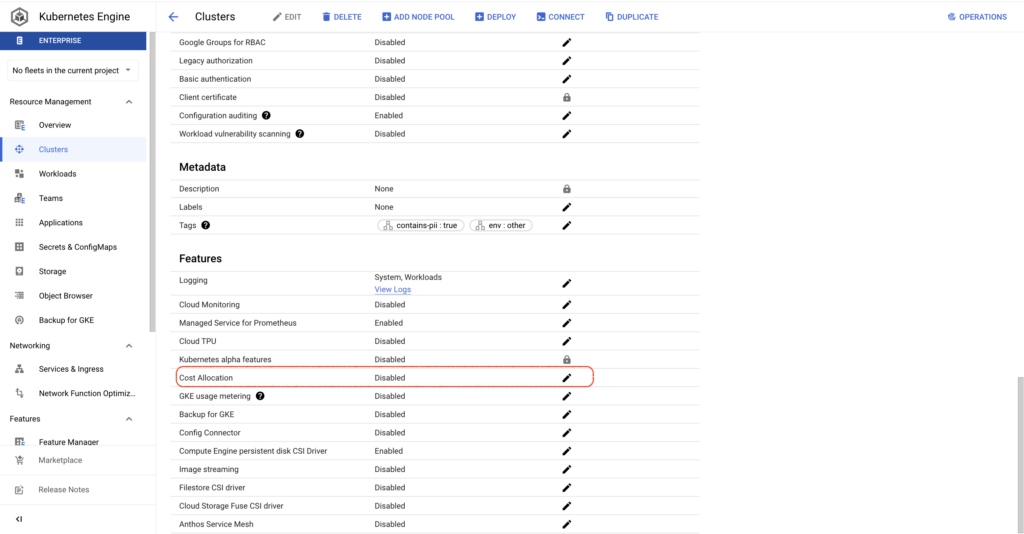
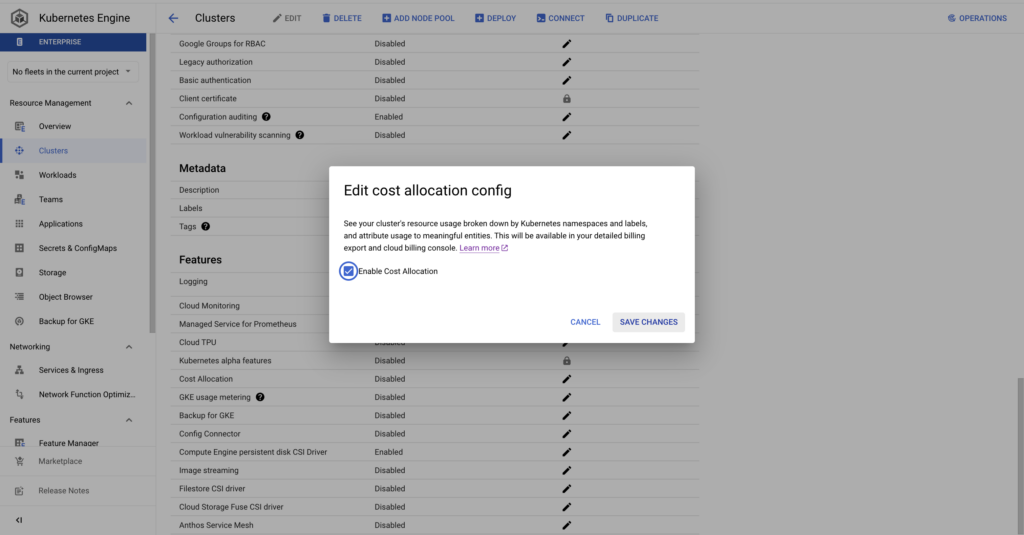
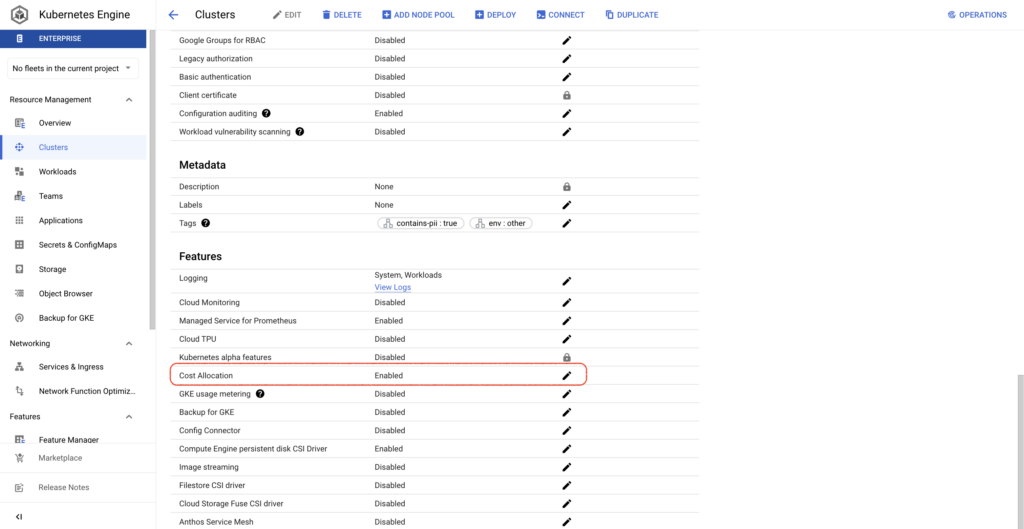
It is much simpler to enable GKE cost allocation compared to GKE usage metering, requiring just a gcloud command or the checking of a box in the Google Cloud Console per cluster. Once enabled, a BQ dataset is created containing metrics around CPU, memory consumption, and disks on workloads running in the clusters.
This makes it easy to view cluster and namespace costs — as well as information on resources with GKE Labels attached to them.
With GKE cost allocation enabled on your clusters, you’ll be able to answer questions like:
- How much of my cluster costs are caused by which tenant?
- How do my out-of-cluster costs (CloudSQL, GCS, etc.) relate to in-cluster costs?
- How much does my backend application cost?
Finally, once enabled, granular billing information on your cluster and namespace costs will also flow into the DoiT Console, making it possible to perform more complex cost allocations with them. Let’s explore an example scenario in the next section.
Mapping GKE costs to your business groupings
The first step to performing cost allocation, is to define the business groupings you want to allocate costs to. In the DoiT Console, you do this using Attributions. Attributions help you to group cloud resources together and organize costs in a way that reflects how you want to allocate.
Let’s imagine we’re a hypothetical gaming company, offering several games to our users.
We might want to allocate resources to different games, as well as different environments those games run on.
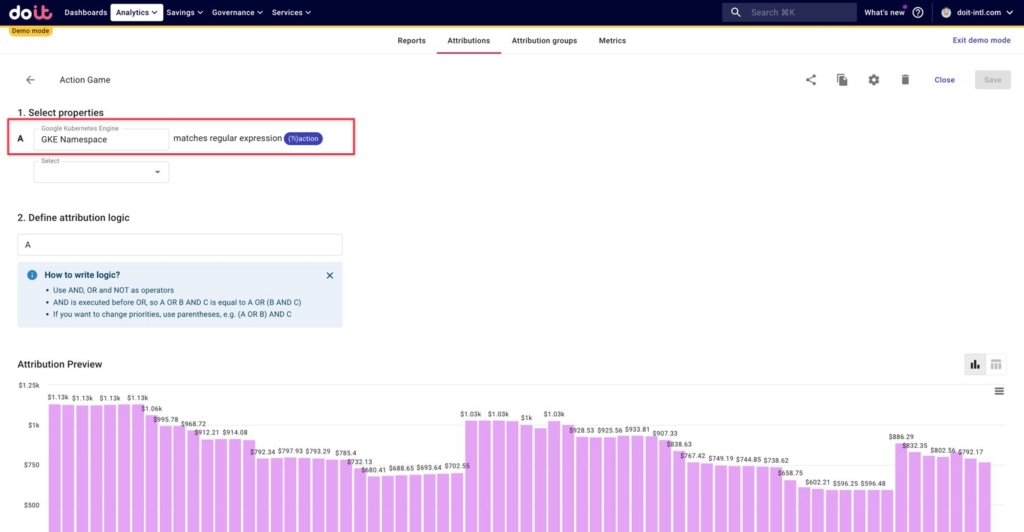
Below, we’ve defined any GKE costs related to one of our games — an action game — as any namespace containing the word “action”. Using regex for this allows us to capture the resource costs for any new action-game-related namespaces that are created in the future, without having to manually update the Attribution.
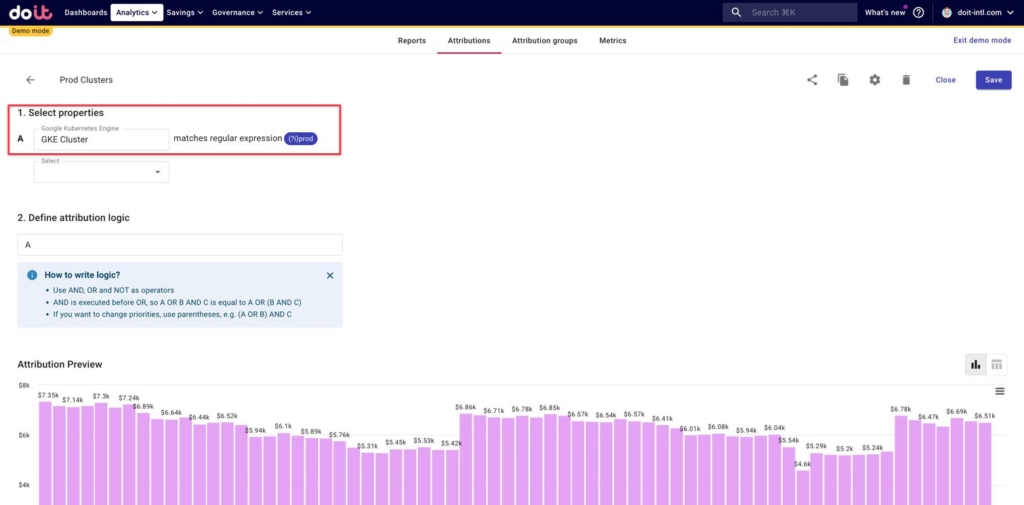
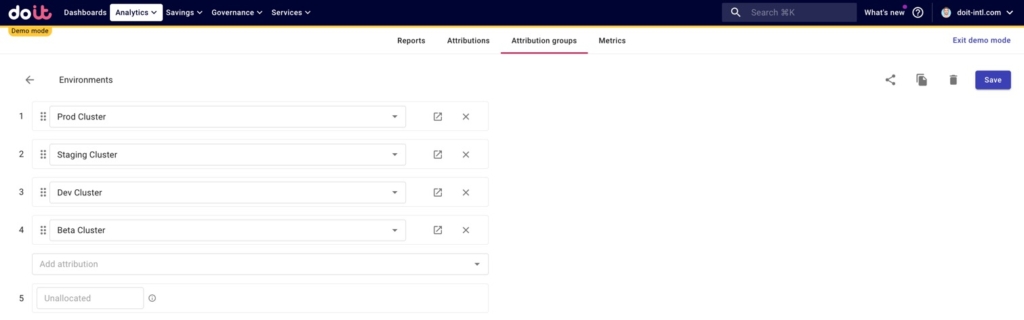
Additionally, we’ve defined clusters related to production environments, as well as dev, staging, and beta environments. Below is an example of how we might define production clusters, using regex to capture all clusters that have the word “prod” in their names.
Organizing our business groupings
Next we’ll want to organize related Attributions into Attribution Groups. These groups allow us to split shared costs among a set of Attributions, but also allow us to break down a set of Attributions by another. We will do both in this next section.
Below we created a “Games” Attribution group containing Attributions representing:
- Four games our hypothetical company operates
- Shared in-cluster and unattributed costs, including:
- kube:system and kube:system-overhead: K8s system components/namespaces. (kube-system is the namespace, and Google then produces this additional metric expressing the overhead)
- kube:unallocated: resources that are neither requested by workloads nor requested for system overhead.
- goog-k8s-unknown: this is basically cost allocation having an error, when a new Compute VM is started up/the cluster scales up (could not process SKU)
- goog-k8s-unsupported-sku - existing, but unsupported SKU (ex. E2 instances)

- Out-of-cluster shared costs: costs for non-Kubernetes resources, that are running in Google Cloud outside of Kubernetes, and are used by the apps deployed on the cluster
- databases like Cloud SQL or BigQuery
- object storage like Google Cloud Storage
- message queues like Pub/sub, Kafka, etc.

- Anything not captured in the above Attributions
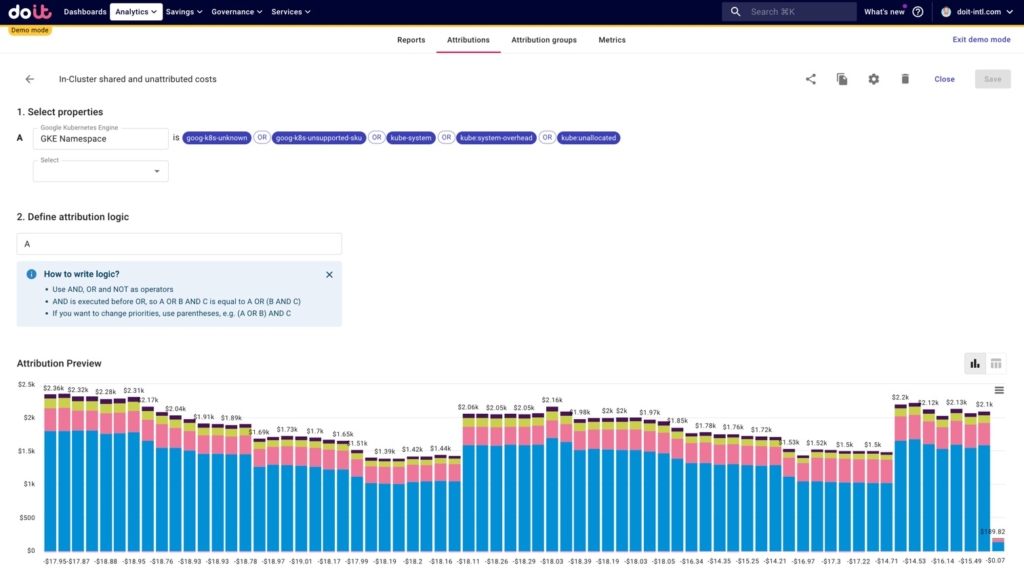
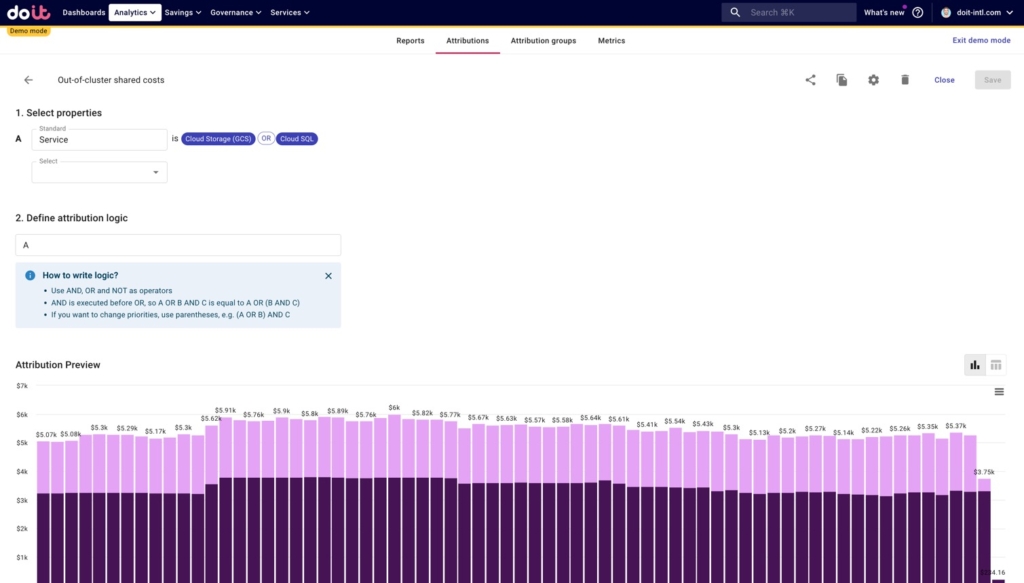
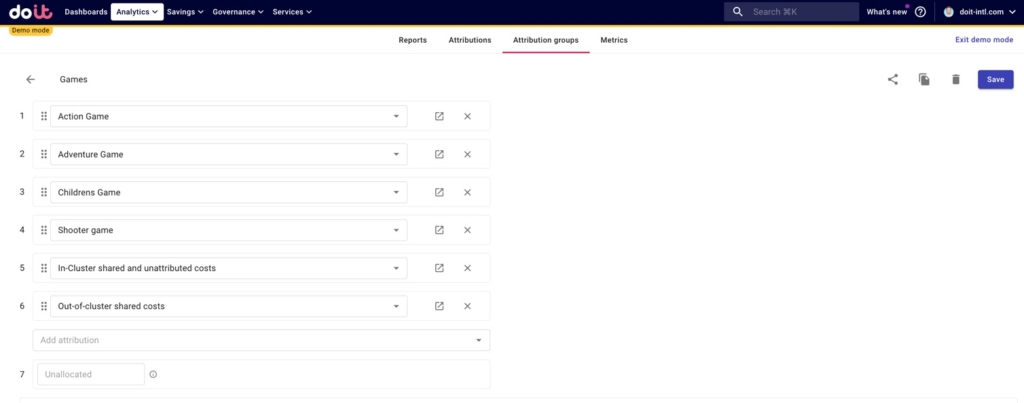
We include the non-game Attributions because these are shared costs we’ll want to split among the games in the next section.
And we similarly created an Attribution Group for all of our environments.
We want to do this because once we split shared costs among our games, we’ll want to know how much we’re spending on each environment for each game.
Splitting in-cluster and out-of-cluster shared costs
First, we’ll want to run a report to examine our Attribution Group containing our game and shared costs.
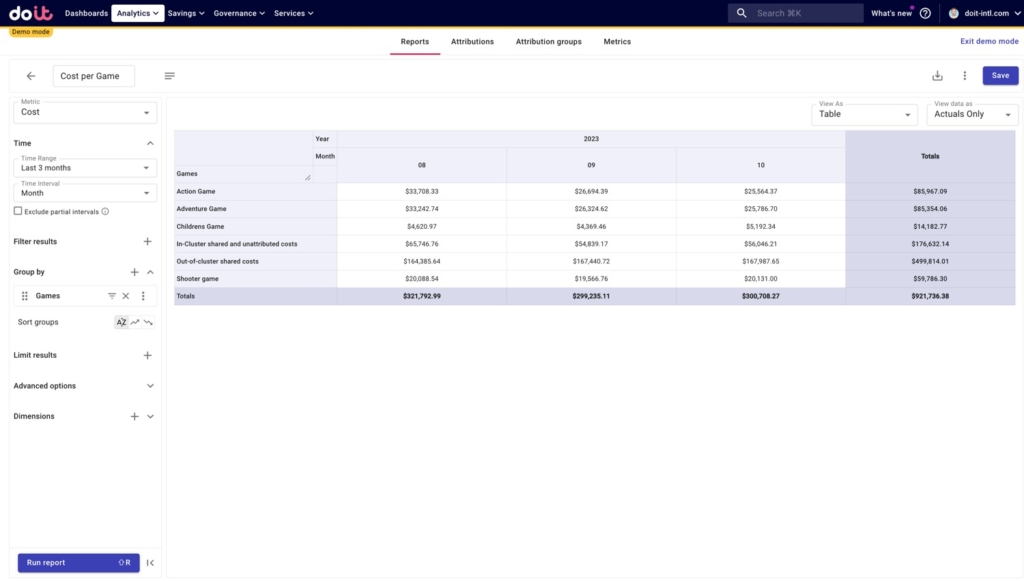
To do so, we follow the steps below:
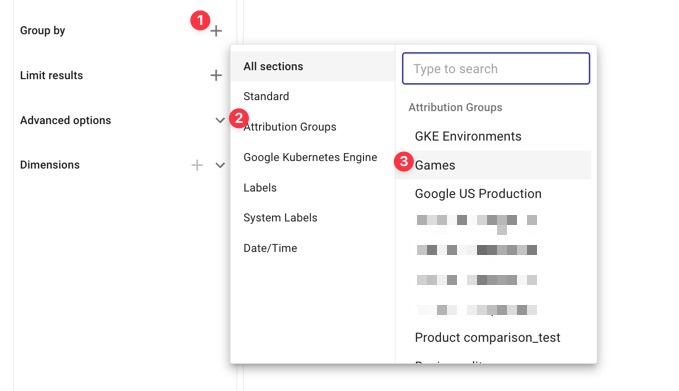
Then we’ll want to split our two shared costs — In-Cluster shared and unattributed costs and Out-of-cluster shared costs — among the games.
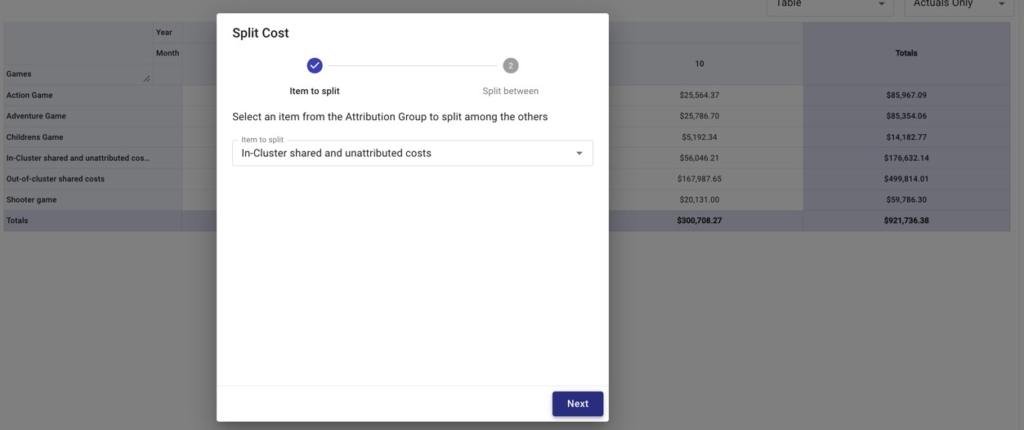
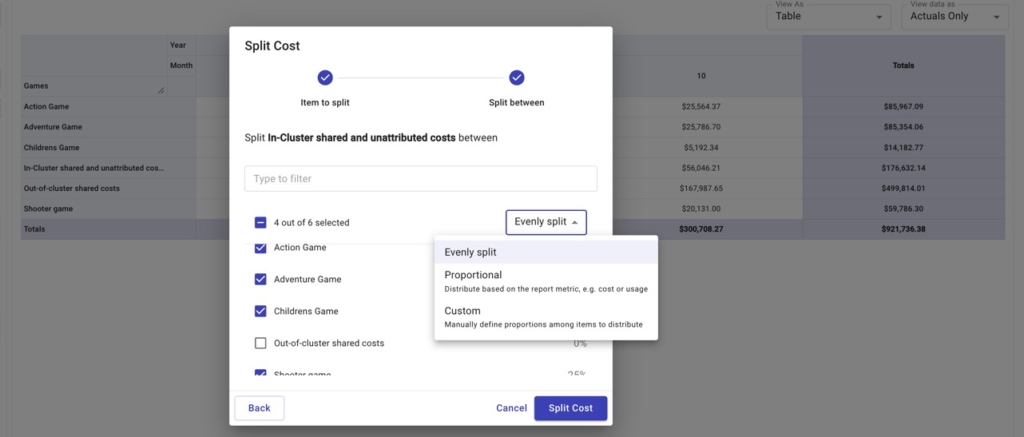
We can choose to split these costs evenly, proportionally to each game’s relative spend vs. the total spend, or by a custom amount.
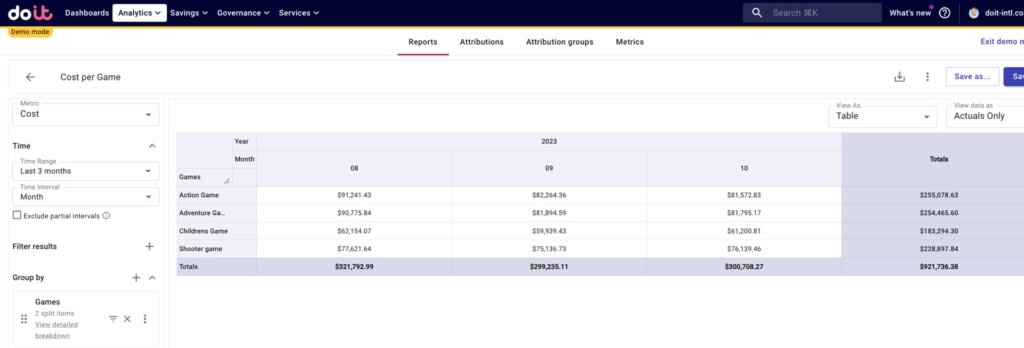
After doing so, we can see for each game:
- The cost of running that game
- Its portion of shared, in-cluster / unattributed costs
- Its portion of shared, out-of-cluster costs
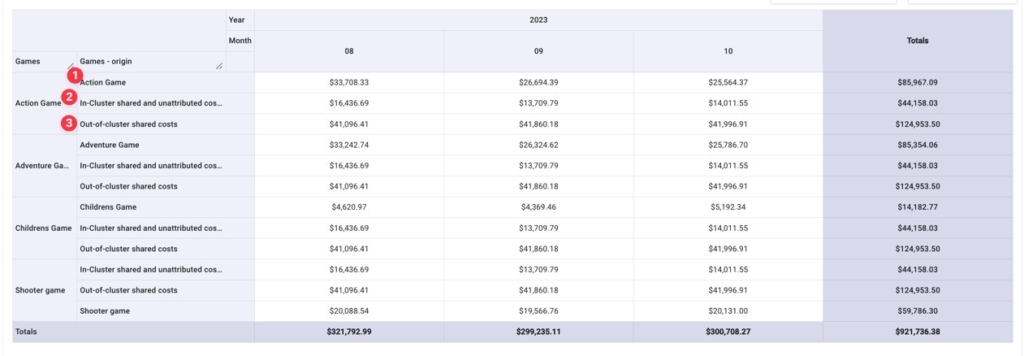
To simplify things, we’re going to aggregate all three of these line items together under the cost of each game.
Breaking down game costs by environment
Now we’re ready to figure out how each game’s total costs are broken down per environment by adding our “GKE Environments” Attribution Group to our breakdown.
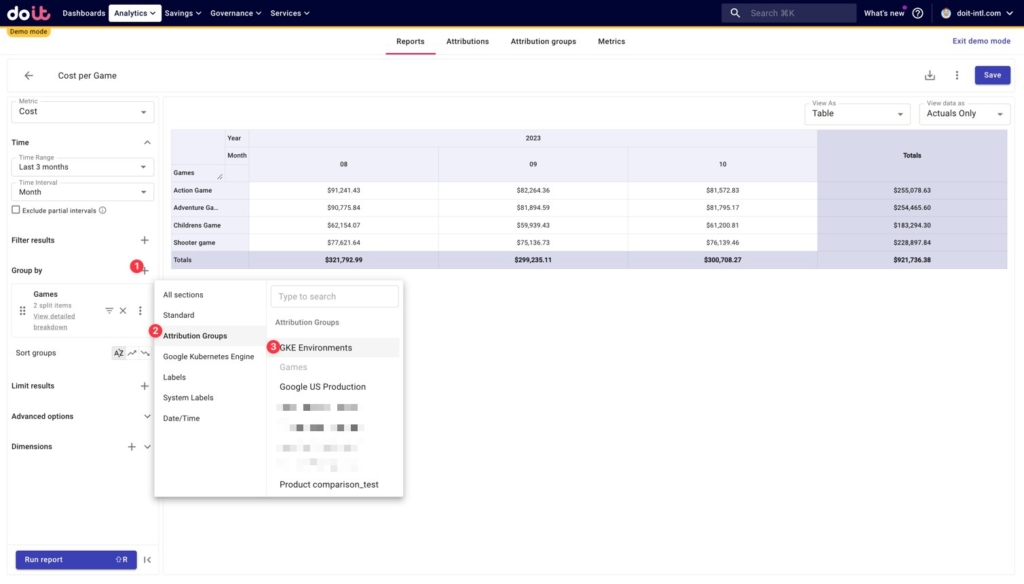
Below we can see how each game’s costs are broken down by each of the environment attributions we created earlier, as well as any unallocated costs. These unallocated costs are resources that aren’t captured in any of the Attributions in the Attribution Groups we’re using here.
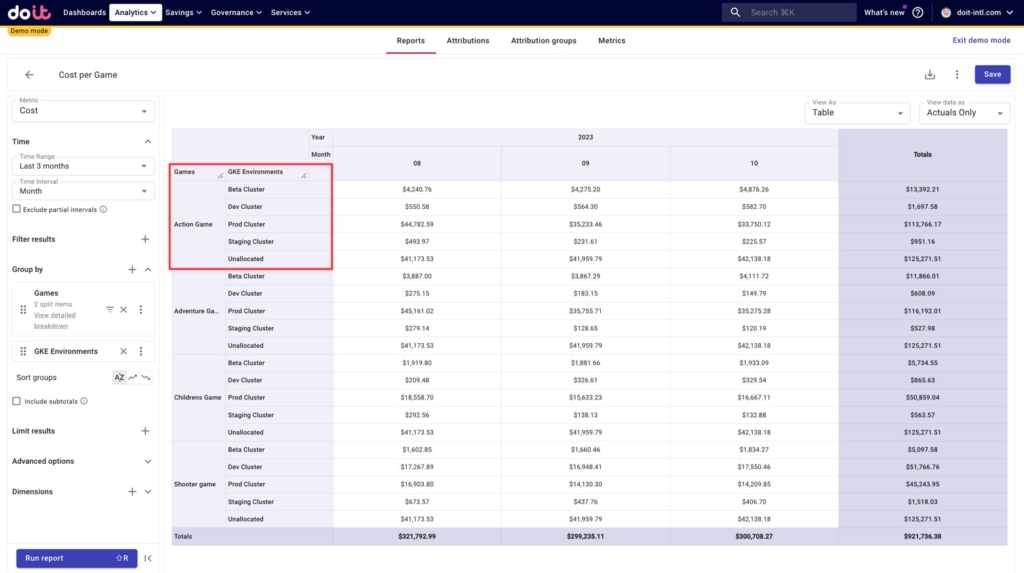
We can dig into unallocated costs to see what’s driving it, and from there potentially alter any existing Attributions to include those resources.
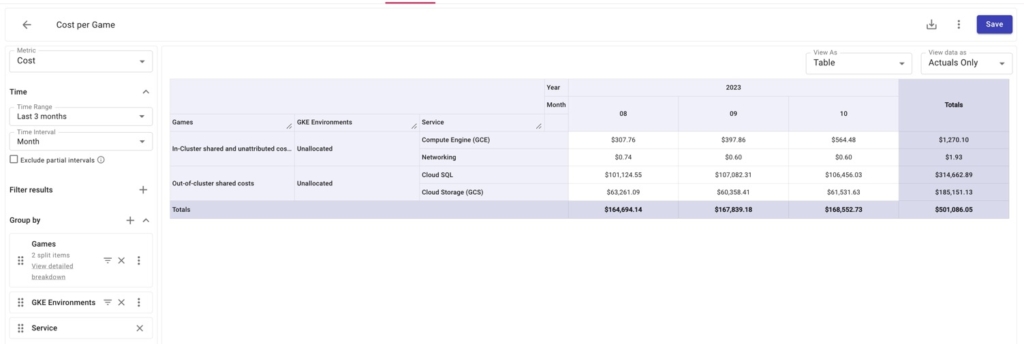
Let’s filter only for unallocated costs in the “GKE Environments” Attribution Group below, and then add “Service” into our breakdown.
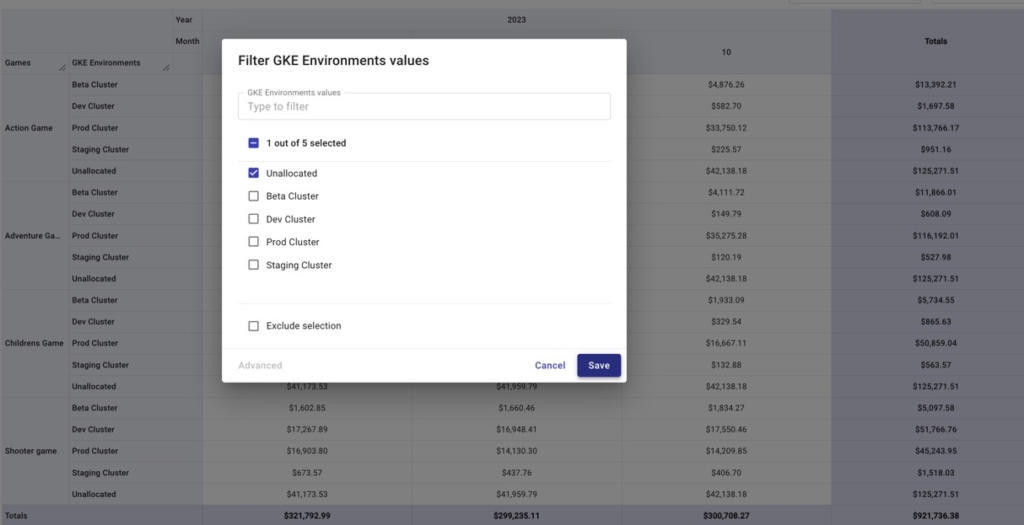
Doing so can help you identify any unlabeled resources if they belong to services whose resources can be labeled, or projects that aren’t included in any Attribution that should be.
Below we can see that there are some GCE, GCS, and Cloud SQL costs that aren’t being included in our Attribution Groups.
And zooming into unallocated resources for Compute Engine, we can identify exactly which resources aren’t being included. With this information, we might want to revise our Attribution(s) to include those resources.
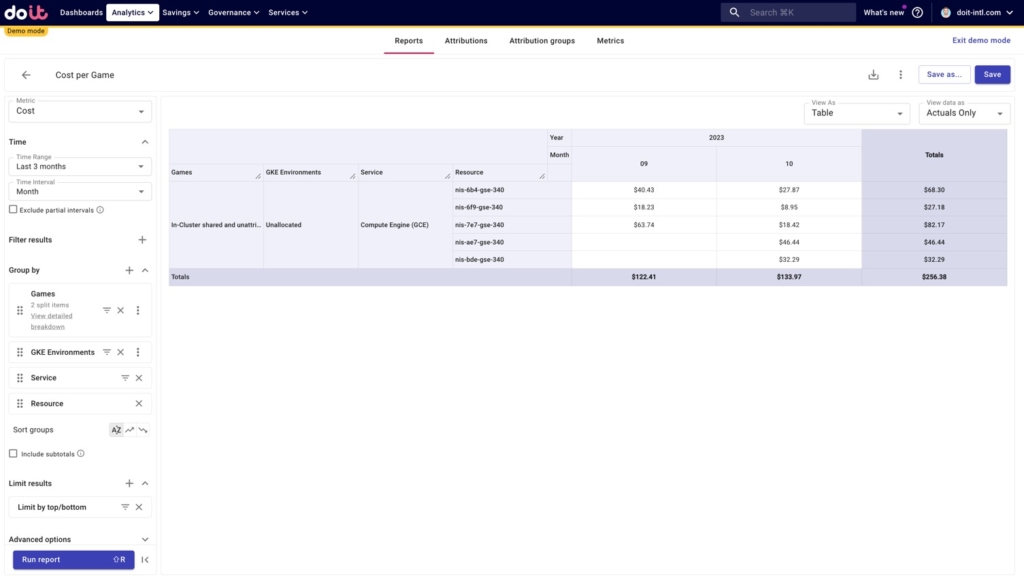
This is how you can bring unallocated costs down and increase visibility into your GKE spend.
Conclusion
Typically if you wanted to get insight into how your Kubernetes workloads are impacting your overall cloud bill, you’d have to turn to tools like Cast AI or Kubecost.
While these products are more robust than GKE cost allocation, Google Cloud is unique among the hyperscalers in that they have a lot of the cost visibility functionality baked in and easy to enable on your clusters.
You can then use the data provided by GKE cost allocation, as we have above, to get more transparency into how your costs are broken down and answer more specific questions about your cloud bill.
If you’re a DoiT customer with GKE cost allocation enabled already, start exploring your data in the DoiT Console today. If you’re not a customer, but interested in learning more about our products and consulting services around K8s and beyond, get in touch with us.